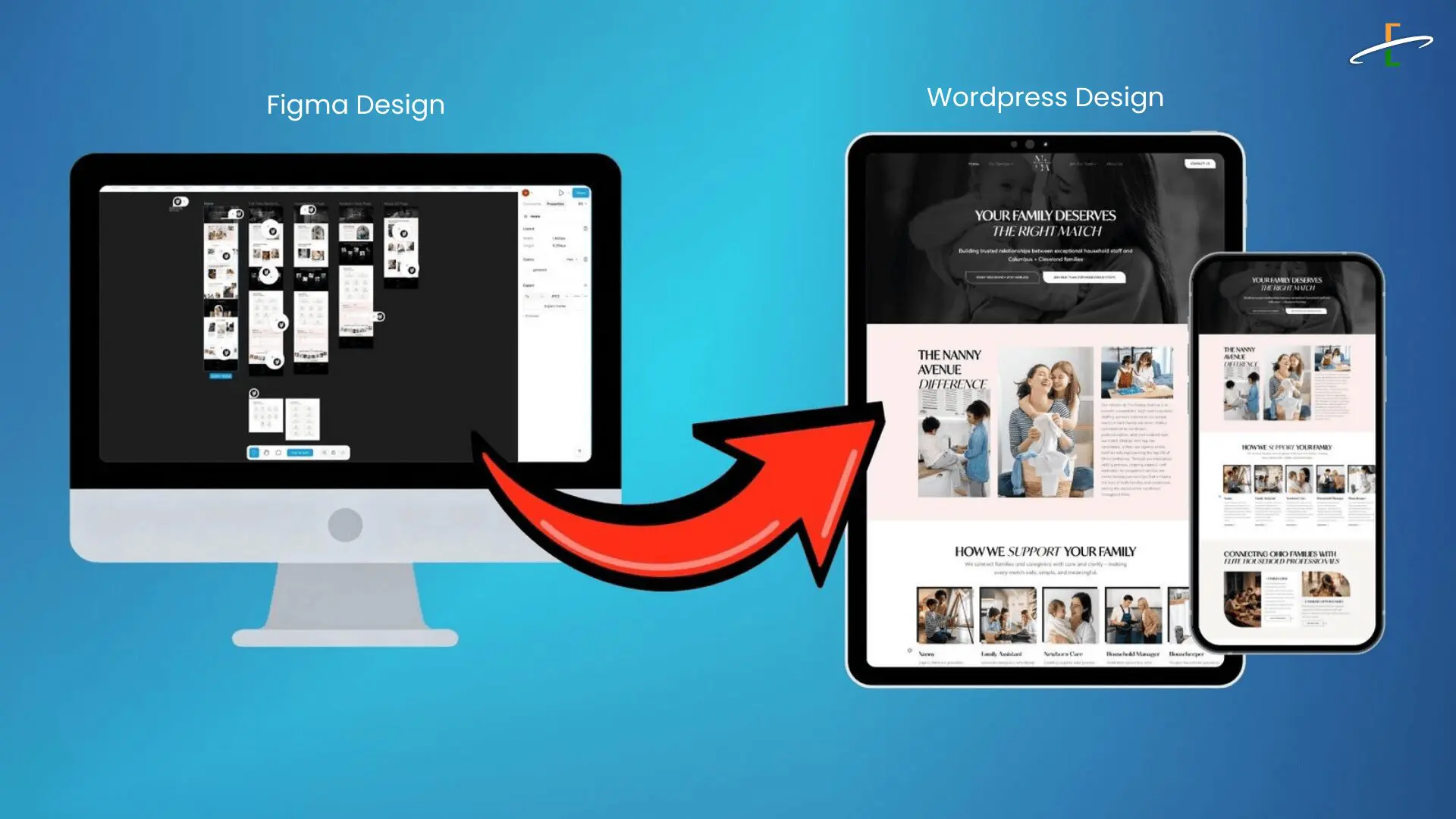
Turning a Figma design into a WordPress website can take time. You may need to rebuild sections, fix spacing, improve responsiveness, and match the original design closely.
However, the right tools and workflow can make the process much faster.
In this blog, you’ll learn how to convert Figma into WordPress quickly. You’ll also discover useful tools that can help speed up the process.
1. Prepare Your Figma File for Smooth Conversion
Before you convert anything, your Figma file must be clean and structured. A messy file can break layouts and create extra work in WordPress.
Steps:
- Keep your layout inside a proper grid system (12-column works best).
- Use consistent spacing (8px system is recommended).
- Name layers properly (Header, Hero, Buttons, CTA, etc.).
- Convert icons into SVG for better quality.
- Export images in optimized formats (WebP / PNG).
A clean Figma file gives you faster and more accurate results.
2. Choose the Right WordPress Builder
Your conversion speed depends on which page builder you use in WordPress.
Best options:
- Elementor (fastest for Figma-style designs)
- Gutenberg Blocks (lightweight & SEO-friendly)
- Custom Theme Development (best performance, takes more time)
Steps:
- Decide whether your website needs drag-and-drop editing or custom code.
- If you want quick editing, choose Elementor.
- If you want speed + clean SEO structure, use Gutenberg.
- If you want ultra performance and unique features, go custom.
3. Use UiChemy to Convert Figma to WordPress Faster
UiChemy is one of the easiest tools that helps convert Figma designs into WordPress pages, especially if you’re using Elementor.
Steps:
- Install UiChemy plugin on WordPress
- Connect it with your Figma file
- Select the frame/screen you want to convert
- Import it into WordPress as editable sections
- Edit and publish the page
This is a great option for quick landing pages and sections.
4. Convert Figma to Elementor Layouts Using Elementor Tools
If your website is built using Elementor, some conversion plugins/tools can help you rebuild designs faster with reusable sections.
Steps:
- Create Elementor sections (Hero, Services, Testimonials)
- Match Figma spacing using global settings
- Save sections as templates for future pages
- Use global fonts and colors for consistency
This approach makes your design scalable across multiple pages.
5. Use Anima to Export Figma into Code (For Developers)
Anima helps export Figma designs into frontend code like HTML/CSS and React. While it’s not a direct WordPress import, it helps developers speed up custom WordPress builds.
Steps:
- Install the Anima plugin in Figma
- Select the screens you want to export
- Generate the code
- Use it as a reference for your WordPress theme build
- Convert it into reusable WordPress templates
This is best for advanced custom projects.
6. Make Your Figma-to-WordPress Site Responsive
A site that looks perfect on desktop can break on mobile if responsiveness is ignored.
Steps:
- Adjust padding and font sizes for mobile devices
- Use flexible containers instead of fixed widths
- Ensure buttons and CTAs stay clickable on small screens
- Test the layout in WordPress preview mode (Desktop / Tablet / Mobile)
Responsiveness is the key step most converters miss.
7. Optimize the Site for SEO Before Publishing
A great-looking site should also rank well on Google.
Steps:
- Use only one H1 heading per page
- Add keyword-focused H2 and H3 subheadings
- Compress images and enable lazy loading
- Add internal links (Services + Contact page)
- Write meta title + description using your focus keyword
SEO makes your WordPress site visible to real customers.
8. Test the Website Before Going Live
Even after conversion, testing is important to avoid broken UI or performance issues.
Steps:
- Check all buttons, forms, and navigation links
- Test the website on mobile and tablet
- Improve speed using caching tools
- Fix spacing and alignment issues
- Ensure fonts and colors match the Figma design
A final check ensures your site looks professional and works perfectly.
Conclusion:
Turning a Figma design into a live WordPress website can be faster with the right tools and workflow. However, a professional website still needs careful testing, responsive design, and SEO optimization.
Ecron™ Inc. converts Figma designs into fast, responsive, and well-structured WordPress websites. We also focus on performance, clean layouts, and a smooth user experience.
Contact us to get more information about turning your Figma design into a high-performing WordPress website.