WordPress websites are frequently targeted by automated attacks, malicious scripts, vulnerable plugins, and unauthorized access attempts. Using a security plugin like Wordfence can help identify malware as early as possible because, in many cases, a hacked website may continue to look normal to visitors even when malicious code is hidden inside its files.
Finding malware early can help prevent further damage.
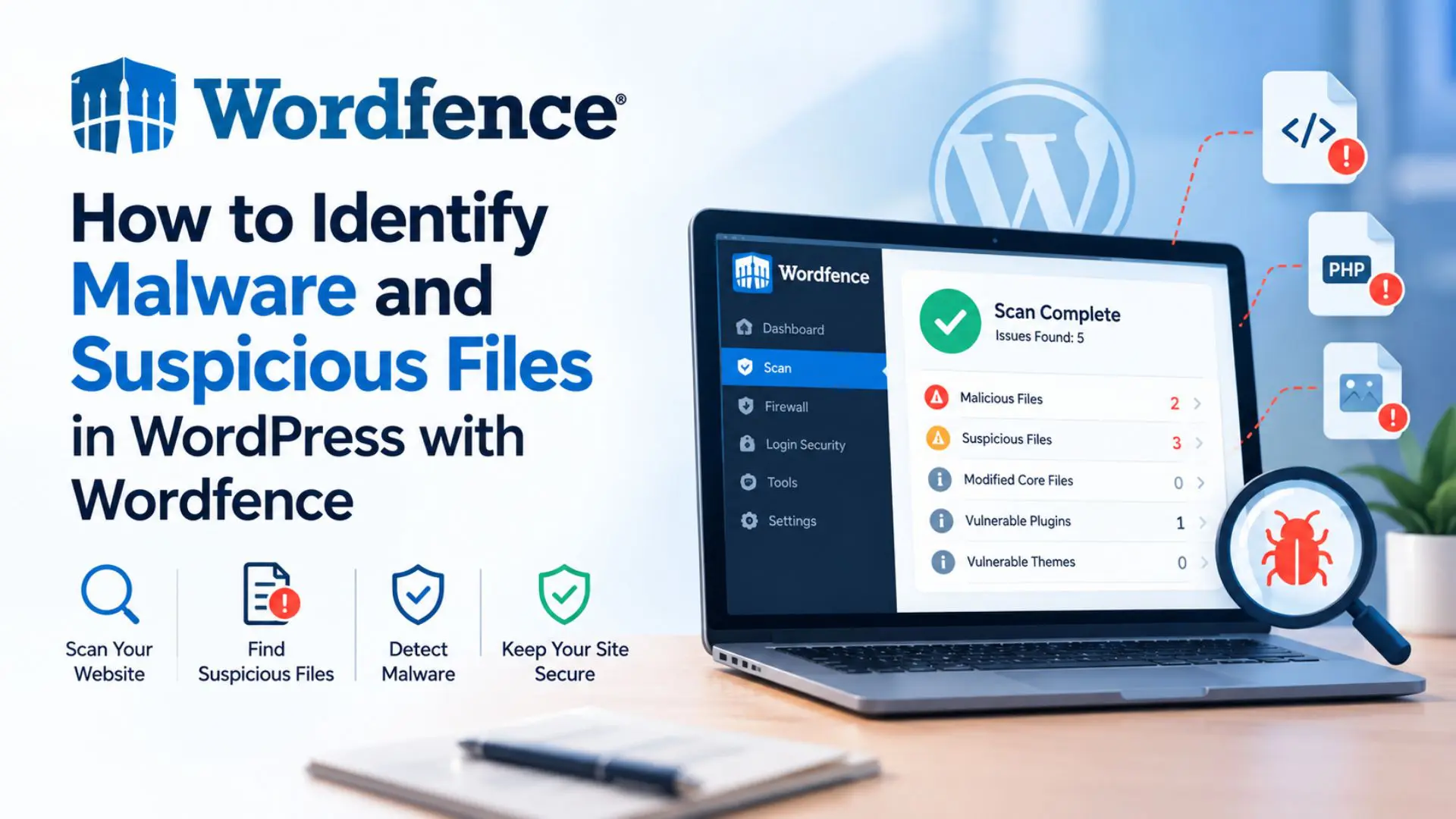
Wordfence provides security scanning tools that can help WordPress website owners identify malware, suspicious files, modified core files, vulnerable plugins and themes, and other security issues.
In this guide, we'll explain how to identify malware and suspicious files in WordPress using Wordfence, how to interpret scan results, and what you should do when something suspicious is detected.
What Are Suspicious Files?
Not every unusual file is malware.
A suspicious file is a file that appears unusual because of its location, content, modification, or relationship to known WordPress components.
For example, a file may be suspicious if:
- It wasn't part of the original WordPress installation.
- It appeared unexpectedly.
- It contains heavily obfuscated code.
- It has been modified without authorization.
- It contains code associated with known malware.
- It is located in an unusual directory.
It's important to investigate suspicious files before deleting them because legitimate custom code can sometimes look unusual.
Signs Your WordPress Website May Contain Malware
Malware isn't always visible, but several warning signs can indicate that your website needs investigation.
Common symptoms include:
- Unexpected redirects
- Unknown administrator accounts
- Strange pop-ups
- Spam content
- Unexpected files
- Changes to website content
- Browser security warnings
- Search-engine warnings
- Unusual server activity
- Unexpected changes to WordPress files
However, the absence of these symptoms doesn't necessarily mean your website is clean.
Some malware is designed to remain hidden.
What Is Wordfence?
Wordfence is a WordPress security solution that includes tools for scanning websites and identifying security issues.
Its security features can include:
- Malware scanning
- Firewall protection
- Login security
- Two-factor authentication
- IP blocking
- Security alerts
- Vulnerability detection
- File integrity monitoring
The malware scanner is particularly useful when investigating suspicious activity or checking a website for potential compromise.
How to Run a Wordfence Scan
Before scanning a website that you suspect has been compromised, consider creating a complete backup.
Then:
- Log in to your WordPress dashboard.
- Go to Wordfence → Scan
- Start the scan.
- Allow Wordfence to complete its analysis.
- Review the findings carefully.
The amount of time required can vary depending on the size of the website and the number of files being scanned.
How Wordfence Helps Identify Suspicious Files
Wordfence can examine WordPress files for indicators of compromise and unexpected changes.
The scan can identify several categories of problems.
1. Modified Core Files
WordPress core files are the files that make up the WordPress software itself.
If a core file has been modified unexpectedly, it should be investigated.
An unexpected modification can indicate that an attacker changed the file, although legitimate developers may also modify files in some environments.
For this reason, always investigate the reason for the change before taking action.
2. Malware Signatures
Security scanners can look for patterns associated with known malware.
If a file contains code matching a known malicious pattern, Wordfence may flag it for further investigation.
However, malware can be customized or obfuscated, so scanning should be combined with other security checks.
3. Suspicious Code
Some code may be flagged because it appears suspicious or potentially dangerous.
For example, heavily obfuscated PHP code or unexpected code that dynamically executes content may require additional investigation.
Don't assume that every flagged line is malicious. Developers sometimes use legitimate functions that can look suspicious to automated scanners.
4. Unknown Files
Wordfence can identify files that aren't expected as part of a standard WordPress installation or known plugin/theme package.
An unknown file doesn't automatically mean your website has been hacked.
It could be:
- A custom development file
- A legitimate plugin file
- A theme customization
- A server-generated file
- A file created by another legitimate service
Always identify the purpose of a file before deleting it.
5. Vulnerable Plugins and Themes
Wordfence can also identify known vulnerabilities in WordPress plugins and themes.
A vulnerable plugin doesn't necessarily mean the website is already infected, but it can represent a potential attack path.
If a vulnerability is found, check whether an update is available.
If the plugin or theme is no longer required, removing it may be appropriate.
How to Read Wordfence Scan Results
After the scan completes, you'll see a list of findings.
These may include different types of security issues and warnings.
When reviewing the results, ask:
What file was flagged?
Identify the exact file and its location.
Why was it flagged?
Look at the reason Wordfence provided.
Does the file belong to WordPress, a plugin, or a theme?
Determine whether the file is legitimate.
Was the file recently modified?
Unexpected modifications can provide useful clues.
Is the code actually malicious?
Review the code and compare it with a clean version when appropriate.
Don't Immediately Delete Suspicious Files
One of the biggest mistakes during malware cleanup is deleting files without understanding them.
Deleting the wrong file can cause:
- Website errors
- Broken plugins
- Broken themes
- Missing functionality
- Database or application errors
Instead, investigate the file first.
If a WordPress core file has been modified, compare it with a clean copy of the same WordPress version.
For plugins and themes, compare the file with the official package whenever possible.
How to Investigate a Modified WordPress File
If Wordfence identifies a modified core file, start by determining whether the change was legitimate.
Ask:
- Was the website recently customized?
- Did a developer modify the file?
- Was the modification caused by an update?
- Does the file differ from the official WordPress version?
- Does it contain suspicious or obfuscated code?
If the modification isn't legitimate, replacing the file with a clean version may be safer than manually editing it.
How to Check for Unauthorized WordPress Users
Malware investigations shouldn't focus only on files.
Attackers may create unauthorized administrator accounts to maintain access.
Go to:
WordPress Dashboard → Users → All Users
Review the accounts and look for users you don't recognize.
Pay particular attention to accounts with administrator privileges.
If an account is confirmed to be unauthorized, remove it and change the passwords of legitimate administrator accounts.
Check Plugins and Themes
After a malware scan, review your installed plugins and themes.
Look for:
- Outdated plugins
- Outdated themes
- Plugins you no longer use
- Themes you no longer use
- Plugins from untrusted sources
- Unexpected plugins
Update legitimate software when appropriate and remove components that are no longer required.
Avoid using pirated or nulled plugins and themes because their code may have been modified and can introduce security risks.
What Should You Do If Wordfence Finds Malware?
If Wordfence identifies confirmed malware, don't stop at removing the flagged file.
A proper investigation should consider the possibility that multiple files or accounts have been compromised.
A basic response can include:
- Create a backup.
- Document the scan findings.
- Identify the affected files.
- Review administrator accounts.
- Change important passwords.
- Update WordPress and vulnerable plugins/themes.
- Repair or replace compromised files.
- Remove confirmed malicious files.
- Scan the website again.
- Monitor the website for recurring infections.
If malware repeatedly returns, professional investigation may be necessary to identify the original entry point or a hidden backdoor.
How to Prevent Suspicious Files in the Future
Detecting malware is only one part of WordPress security.
Keep WordPress Updated
Use current versions of WordPress, plugins, and themes whenever possible.
Remove Unused Plugins and Themes
Unused software increases the amount of code that needs to be maintained and secured.
Use Strong Passwords
Use unique passwords for WordPress administrators, hosting accounts, and other important services.
Enable Two-Factor Authentication
2FA provides an additional layer of protection for administrator accounts.
Maintain Regular Backups
A reliable backup can make recovery much easier if your website is compromised.
Use Trusted Software
Install plugins and themes from reputable sources and avoid pirated software.
Monitor Security Alerts
Security alerts can help you investigate unexpected changes before they become a larger problem.
How Often Should You Scan WordPress?
The ideal scanning frequency depends on the website.
Regular scanning can be particularly useful for:
- Business websites
- E-commerce websites
- Membership websites
- Websites with multiple administrators
- Frequently updated websites
- Websites that have experienced previous attacks
You should also run a scan when you notice unusual behavior, receive a security warning, or suspect unauthorized changes.
What If Wordfence Doesn't Find Malware?
A clean Wordfence scan doesn't necessarily prove that a website has never been compromised.
If the website is showing suspicious behavior despite a clean scan, investigate other areas such as:
- WordPress user accounts
- Hosting access
- FTP/SFTP accounts
- Database content
- Server configuration
- Third-party scripts
- Recently modified files
- Vulnerable plugins and themes
Some infections may require manual forensic investigation.
Conclusion:
Identifying malware early is an important part of maintaining a secure WordPress website.
Wordfence can help identify suspicious files, modified WordPress files, malware indicators, and vulnerable plugins and themes, giving website owners useful information when investigating potential security problems.
However, scan results should always be reviewed carefully. A flagged file isn't automatically malicious, and deleting files without understanding their purpose can damage a website.
For the best protection, combine regular Wordfence scanning with software updates, strong passwords, two-factor authentication, reliable backups, trusted plugins and themes, and ongoing security monitoring.
If malware continues to return after cleanup, focus on finding the underlying cause rather than repeatedly deleting individual files. A recurring infection can indicate that an attacker still has access somewhere within the website or hosting environment.
FAQs
1. Does every Wordfence warning mean my website is hacked?
No. A Wordfence warning does not automatically mean your website has been compromised. Some legitimate custom files, plugin modifications, or developer code may be flagged as suspicious and should be investigated before taking action.
2. Can vulnerable plugins cause WordPress malware infections?
Yes. Outdated or vulnerable plugins and themes can provide attackers with a way to gain unauthorized access or inject malicious code. Keeping WordPress components updated is an important part of website security.
3. Should I delete every suspicious file found by Wordfence?
No. You should first identify what the file is, where it came from, and whether it belongs to WordPress, a plugin, a theme, or custom development. Deleting legitimate files can break your website.
4. How often should I run a Wordfence malware scan?
Regular scanning is recommended, especially after plugin or theme updates, unexpected website behavior, security warnings, or suspicious login activity. Automated scheduled scans can also help identify problems earlier.
5. What should I do if Wordfence finds malware?
Create a backup, review the affected files carefully, remove or repair confirmed malicious code, update WordPress, plugins, and themes, change important passwords, and investigate how the website was compromised.
6. Can Wordfence find hidden malware?
Wordfence can detect many types of hidden or obfuscated malware, but no security scanner can guarantee detection of every possible threat. Manual file inspection and server-level checks may sometimes be necessary.
7. Why does Wordfence flag modified WordPress core files?
Wordfence may flag a core file when it differs from the official WordPress version. The change could be legitimate, but unauthorized modifications can also indicate a compromise, so the file should be reviewed carefully.