In most cases, this issue is caused by permalink or rewrite rule conflicts, especially after:
- Migrating a site
- Updating WordPress or Divi
- Installing or removing plugins
- Switching hosting environments
Quick Fix: Re-save Permalinks (Works in Most Cases)
This is the fastest and safest solution.
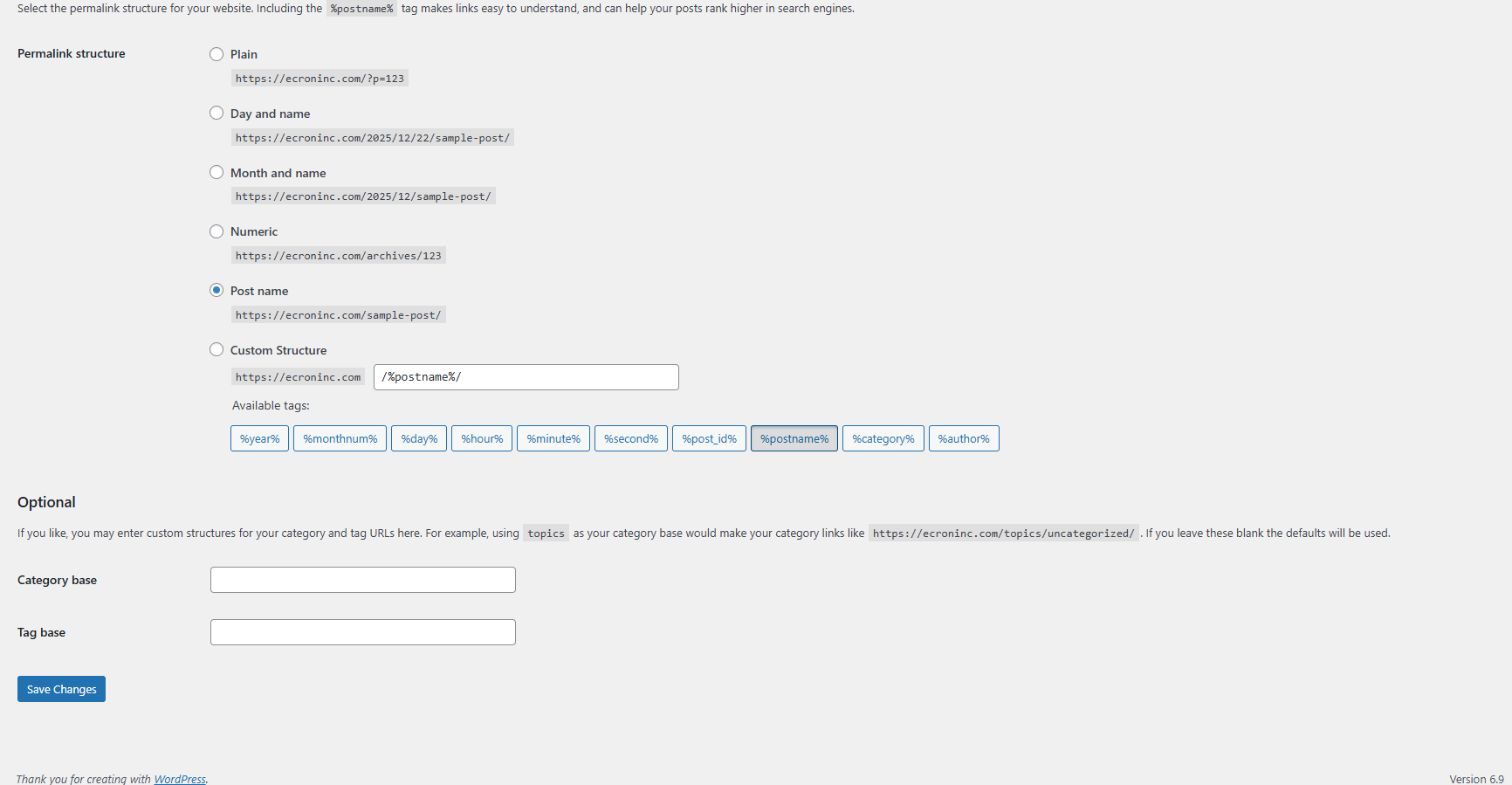
Step 1: Go to Permalink Settings
- Navigate to WordPress Dashboard → Settings → Permalinks
Step 2: Re-save Permalinks
- Do not change anything.
- Simply click the Save Changes button.
This refreshes WordPress rewrite rules and fixes internal routing issues.
Step 3: Check Divi Library Again
- Open the Divi Builder.
- Try inserting a saved layout.
Your missing Divi Library layouts should now appear correctly.
Why This Fix Works
Divi relies on WordPress rewrite rules to fetch and display saved layouts. When these rules become outdated or corrupted, Divi Library items may fail to load—even though they still exist in the database. Re-saving permalinks forces WordPress to regenerate those rules, instantly resolving the issue.
Conclusion:
The missing Divi Library layouts issue is common but easy to fix. By properly saving layouts and refreshing your permalinks, you can quickly restore access to your saved designs. This simple step resolves most cases without any technical changes. Keeping WordPress and Divi updated also helps prevent the issue. With these steps, your Divi workflow stays smooth and uninterrupted.
Search blogs
Other Blogs
Elementor Not Saving Changes? Step-by-Step Solution
How to Fix “There Has Been a Critical Error on This Website” in WordPress
Divi 5 Is Finally Here — A Deep Dive Into the New Interface, Speed, Features & What’s Changed

How to Fix reCAPTCHA Not Working in WordPress