
Whether it’s contact form messages, password reset links, or WooCommerce order notifications — these emails are essential for smooth communication and user trust. Unfortunately, many site owners discover that WordPress emails never reach their inbox or end up in spam. If you’ve been facing this issue, don’t worry — you’re not alone. In this guide, we’ll explain why WordPress isn’t sending emails and how to fix the problem quickly and permanently.
Why WordPress Fails to Send Emails
By default, WordPress uses the PHP mail() function to send emails. While it seems simple, most hosting servers aren’t configured correctly to support it. As a result, your messages may never leave the server — or they’re marked as spam by email providers like Gmail or Outlook.
Other times, a misconfigured plugin, wrong email address, or low-quality hosting service can cause delivery failures. The bottom line: if your WordPress website can’t send emails, the issue is almost always related to server configuration, spam filters, or plugin settings.
1. Test If WordPress Is Actually Sending Emails
Before applying any fixes, it’s important to confirm whether WordPress is sending emails at all. You can use a plugin like WP Mail Logging to track outgoing emails. Once installed, try submitting a contact form or triggering a password reset.
If the log shows that the email was sent but never reached the inbox, your WordPress setup is working — the problem lies with email delivery. If no log appears, it means the emails aren’t leaving your site, so you’ll need to configure a proper mail service.
2. Stop Using the Default PHP Mail Function
The PHP mail() function is unreliable because most web hosts disable or restrict it for security reasons. Even when it works, major email providers treat such emails as suspicious.
The best solution is to send emails using SMTP (Simple Mail Transfer Protocol). SMTP authenticates your messages with proper credentials, making them look trustworthy to spam filters. Instead of relying on the server’s PHP settings, your emails will be sent through a verified mail service — ensuring better deliverability.
3. Install an SMTP Plugin
Using an SMTP plugin is the easiest and most reliable way to fix WordPress email problems. One of the most popular options is WP Mail SMTP. It integrates seamlessly with different email services like Gmail, Outlook, SendGrid, or your hosting provider’s SMTP server.
Once you install and activate the plugin, go to WP Mail SMTP → Settings. You’ll see fields for “From Email,” “From Name,” and mailer options. Choose your preferred email provider and enter the necessary credentials. Most services require an SMTP host, port number, username, and password. After saving the settings, send a test email to confirm everything is working correctly.
4. Use a Reliable Email Provider
If you run an eCommerce or membership site, relying on your hosting’s built-in mail system isn’t ideal. Instead, connect your WordPress site to a reliable email service such as:
- Google Workspace (Gmail SMTP) – Great for small businesses.
- SendGrid or Mailgun – Ideal for high-volume transactional emails.
- Amazon SES (Simple Email Service) – Cost-effective for large-scale sites.
These providers ensure that your messages are properly authenticated and reach users’ inboxes without being marked as spam. Most of them also provide tracking and analytics, allowing you to monitor delivery performance.
5. Check Your Email Configuration
It’s common for WordPress users to forget that plugins like Contact Form 7 or WPForms require specific sender settings. If your form sends emails from a domain like “@gmail.com” but your website is hosted on a different domain, email servers may block it for security reasons.
To avoid this, make sure your “From Email” address matches your website domain — for example, use contact@yourdomain.com instead of a generic email address. This small adjustment can drastically improve email deliverability.
6. Verify Your Domain with SPF, DKIM, and DMARC
Even with SMTP set up, your emails might still go to spam if your domain lacks proper authentication records.
Ask your hosting provider or domain registrar to help you add SPF, DKIM, and DMARC records to your DNS settings. These records act as proof that your emails are legitimate and authorized to be sent from your domain.
Adding them not only prevents your emails from being flagged as spam but also enhances your sender reputation — which is crucial for business communication.
7. Check for Plugin Conflicts
Sometimes, multiple plugins that handle email functions can clash, especially if more than one tries to send emails simultaneously. To check for conflicts, temporarily deactivate all email-related plugins except one (such as WP Mail SMTP). Then test your forms or notifications again.
If the issue resolves, reactivate plugins one by one to find the cause. It’s best to keep only one plugin responsible for sending emails to avoid duplicate or failed messages.
8. Contact Your Hosting Provider
If you’ve tried everything and emails still aren’t being delivered, your hosting provider may have restrictions in place. Some shared hosting services block outgoing mail ports to prevent spam abuse.
Contact your host’s support team and ask whether they allow external SMTP connections or if they can help you configure a mail relay service. A quick check from their side can often solve the issue instantly.
Conclusion:
In conclusion, if your WordPress website is not sending emails, the issue usually lies in poor server configuration or reliance on the default PHP mail function. Switching to an SMTP setup, verifying your domain with proper SPF, DKIM, and DMARC records, and using a trusted email provider like Gmail, SendGrid, or Mailgun can solve the problem permanently. Regularly testing your email function, keeping plugins updated, and monitoring your hosting settings will ensure that every important message — from contact forms to order confirmations — reaches your users’ inboxes smoothly and reliably.
Search blogs
Other Blogs

Elementor Not Saving Changes? Step-by-Step Solution
When you are building a page in Elementor and suddenly your changes refuse to save, it can feel extremely frustrating. You click the Update button, the loader spins, and then either nothing happens or an error message appears. Sometimes it even looks like the page...
How to Fix “There Has Been a Critical Error on This Website” in WordPress
If you are running a WordPress website and suddenly see the message “There has been a critical error on this website”, don’t panic. This error looks serious, but in most cases, it can be fixed easily. This message appears when something on your website stops working...

Divi 5 Is Finally Here — A Deep Dive Into the New Interface, Speed, Features & What’s Changed
After years of development and community feedback, Divi 5 has officially launched. But this isn’t just another update to the popular Divi by Elegant Themes — it is a complete architectural transformation. If you’ve explored a Divi 5 demo, you’ll immediately notice how...
How to Fix reCAPTCHA Not Working in WordPress
reCAPTCHA is an essential security feature that protects WordPress websites from spam, bots, and fake form submissions. However, many site owners face issues where reCAPTCHA does not display, fails validation, or blocks legitimate users from submitting forms. If...
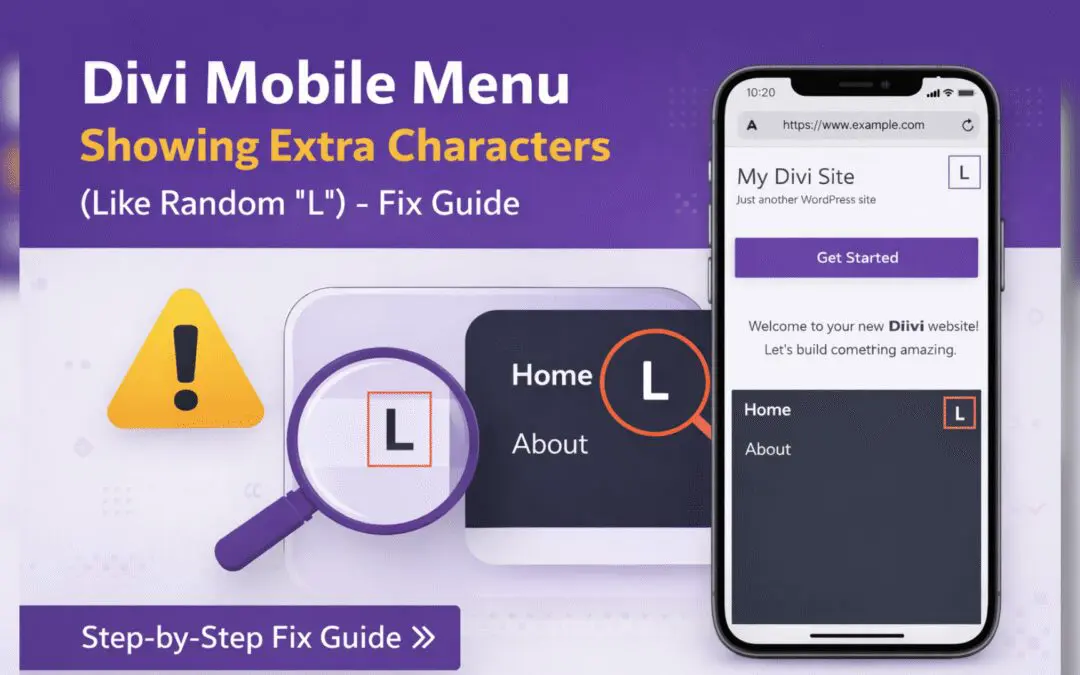
Divi Mobile Menu Showing Extra Characters or Symbols (Like Random “L”) – Fix Guide
If you are using the Divi theme on your WordPress website and notice extra characters or strange symbols (such as a random “L”, square boxes, or broken icons) appearing in the mobile menu, you are not alone. This is a common issue faced by many Divi users, especially...