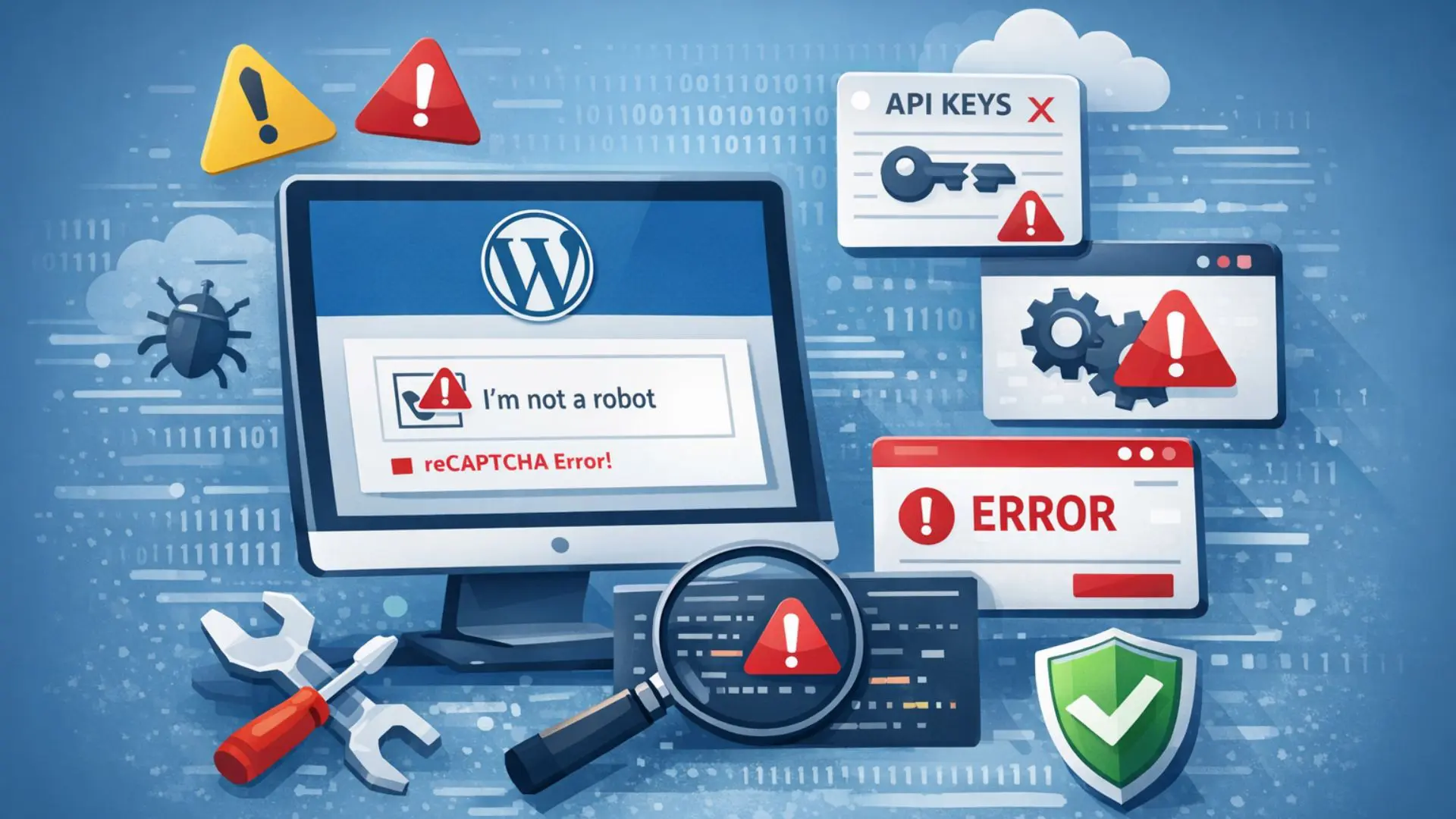
reCAPTCHA is an essential security feature that protects WordPress websites from spam, bots, and fake form submissions. However, many site owners face issues where reCAPTCHA does not display, fails validation, or blocks legitimate users from submitting forms.
If reCAPTCHA is not working on your WordPress website, this guide will walk you through the exact steps to identify and fix the problem.
Why reCAPTCHA Stops Working in WordPress
reCAPTCHA issues usually occur due to one or more of the following reasons:
- Incorrect Site Key or Secret Key
- Version mismatch (reCAPTCHA v2 vs v3)
- Domain not added in Google reCAPTCHA settings
- Plugin or theme conflicts
- JavaScript optimization or caching issues
- Firewall or hosting restrictions
Understanding the root cause makes fixing the issue much easier.
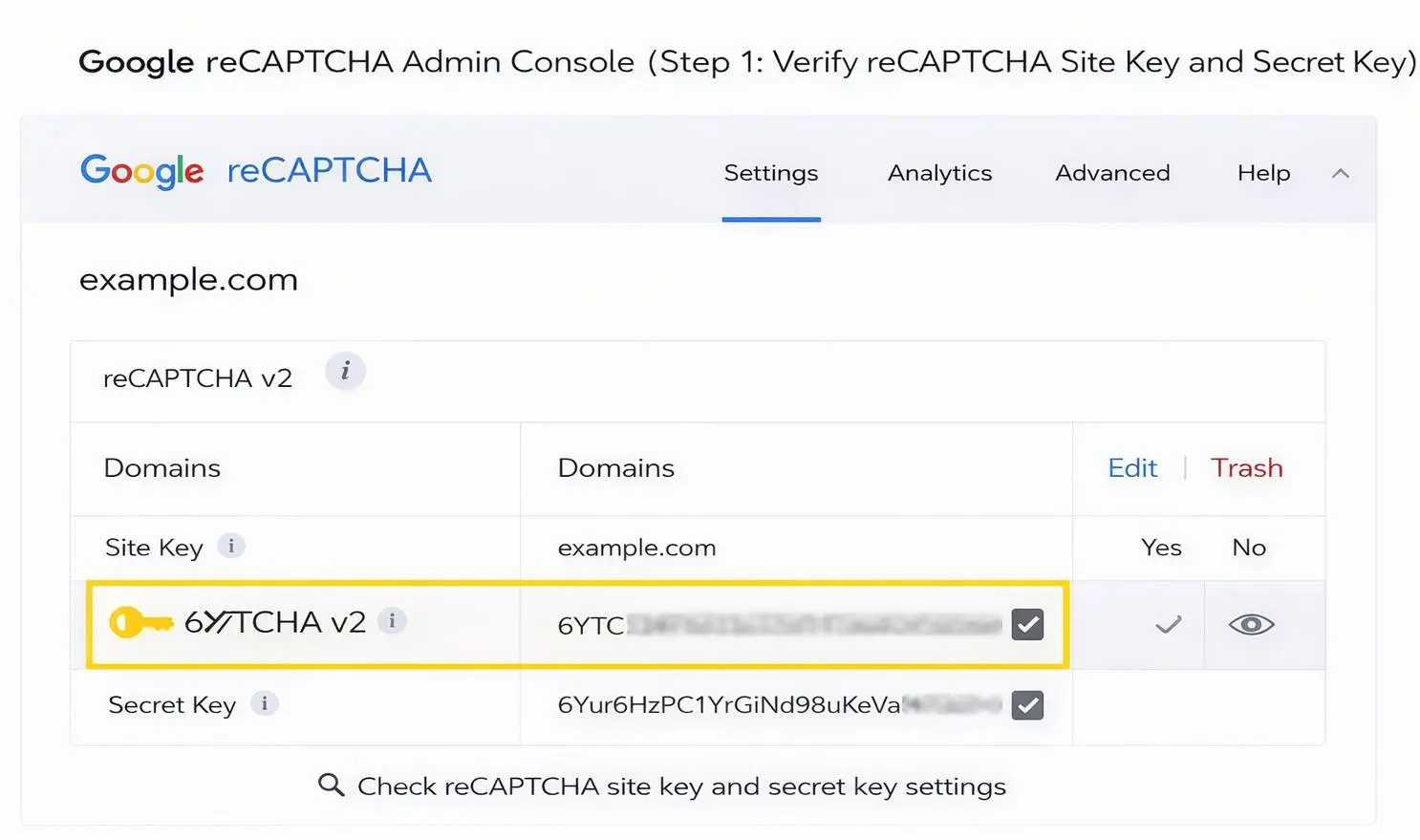
Step 1: Verify reCAPTCHA Site Key and Secret Key
The most common cause of reCAPTCHA errors is incorrect or mismatched keys.
What to do:
- Open the Google reCAPTCHA Admin Console
- Select your registered website
- Copy the Site Key and Secret Key
- Paste them again in your WordPress plugin settings
Important tips:
- Make sure the keys belong to the same domain
- Do not mix reCAPTCHA v2 keys with v3 plugins
Step 2: Confirm the reCAPTCHA Version (v2 or v3)
Using the wrong reCAPTCHA version is a very common mistake.
| Version | Description |
|---|---|
| reCAPTCHA v2 | Checkbox “I’m not a robot” |
| reCAPTCHA v3 | Runs invisibly in the background |
Fix:
- If your form plugin uses v2, your Google reCAPTCHA must be set to v2
- If your plugin supports v3, use only v3 keys
Step 3: Check Domain Settings in Google reCAPTCHA
If your domain is not added correctly, reCAPTCHA will fail silently.
Fix:
In Google reCAPTCHA settings, add:
example.com
www.example.com
If you use:
- Staging domain
- Subdomain
- HTTP → HTTPS
Add those versions as well.
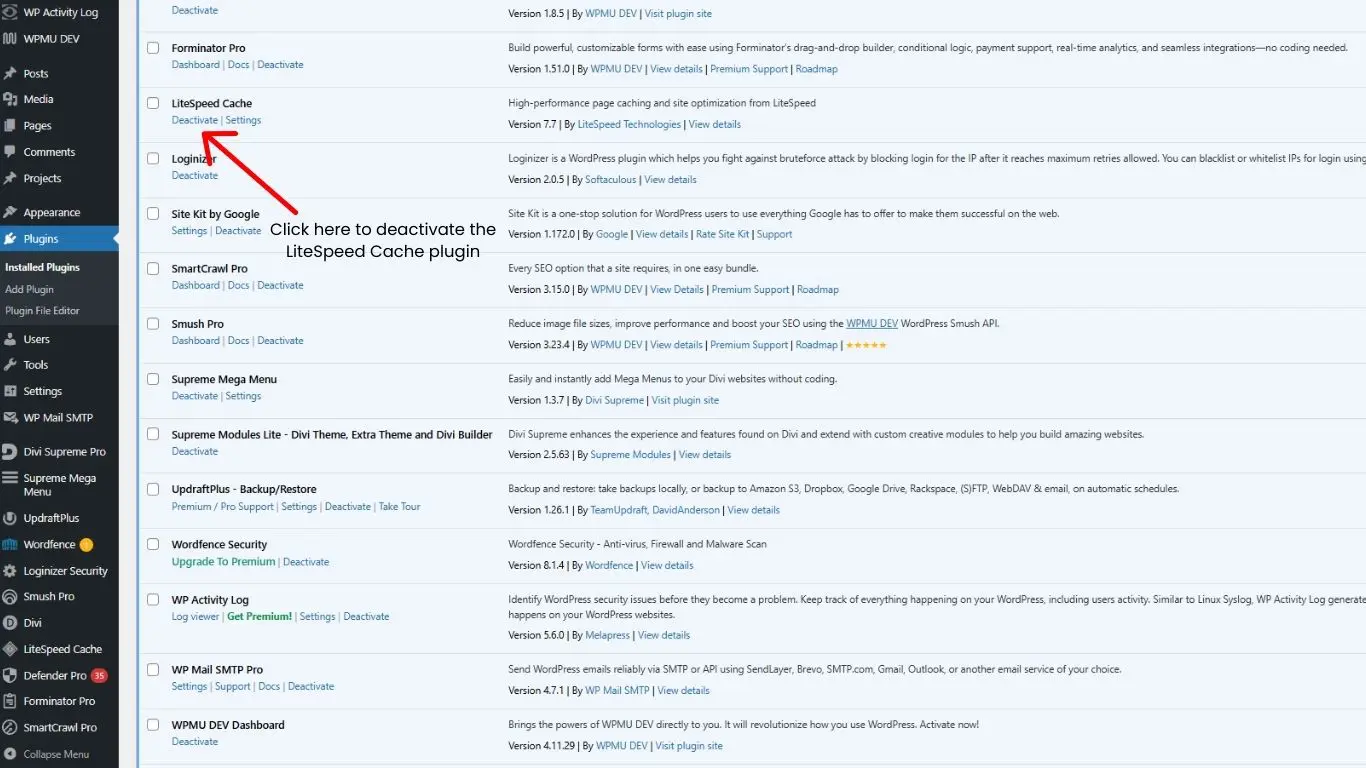
Step 4: Check Plugin Conflicts
Security, cache, and optimization plugins often interfere with reCAPTCHA scripts.
How to test:
- Deactivate all plugins
- Activate only the plugin handling reCAPTCHA
- Test the form
- Reactivate plugins one by one to find the conflict
Common conflict plugins include:
- Caching plugins
- Security plugins
- JavaScript optimization plugins
Step 5: Clear Cache and Disable JavaScript Optimization
reCAPTCHA relies heavily on JavaScript. If scripts are delayed or combined incorrectly, it won’t work.
What to do:
- Clear WordPress cache
- Clear server cache
- Clear CDN cache (if used)
- Temporarily disable:
- JS minification
- JS delay
- JS combination
After testing, re-enable settings carefully.
Step 6: Check Theme or Custom Code Issues
Some themes block or defer essential scripts.
Fix:
- Temporarily switch to a default theme
- Remove custom JavaScript related to forms
- Confirm this script loads properly:
https://www.google.com/recaptcha/api.js
If the script is blocked, reCAPTCHA will not load.
Step 7: Fix reCAPTCHA in Popular Form Plugins
Contact Form Plugins
- Contact Form 7
Enable reCAPTCHA integration and remove old API settings. - Elementor Forms
Enable reCAPTCHA inside the Form widget and match the correct version. - WPForms / Fluent Forms
Reconnect Google reCAPTCHA from plugin settings.
Make sure only one plugin handles reCAPTCHA to avoid conflicts.
Step 8: Check Hosting Firewall or Security Rules
Some hosting providers block Google services by default.
Fix:
Ask your hosting provider to whitelist:
google.com
gstatic.com
This step is especially important on managed or high-security hosting.
Step 9: Test in Incognito and Other Browsers
Browser extensions can block reCAPTCHA.
Test using:
- Incognito mode
- A different browser
- A mobile device
If it works there, the issue is likely browser-related.
Conclusion
Fixing reCAPTCHA issues in WordPress is usually straightforward once you identify the root cause. By checking your API keys, plugin settings, conflicts, and JavaScript errors, you can restore reCAPTCHA functionality quickly. Keeping your WordPress site and plugins updated ensures better security, smoother form submissions, and a reliable user experience.