Easy Steps to Install WordPress: A Beginner’s Guide
Category: Web Development | WordPress
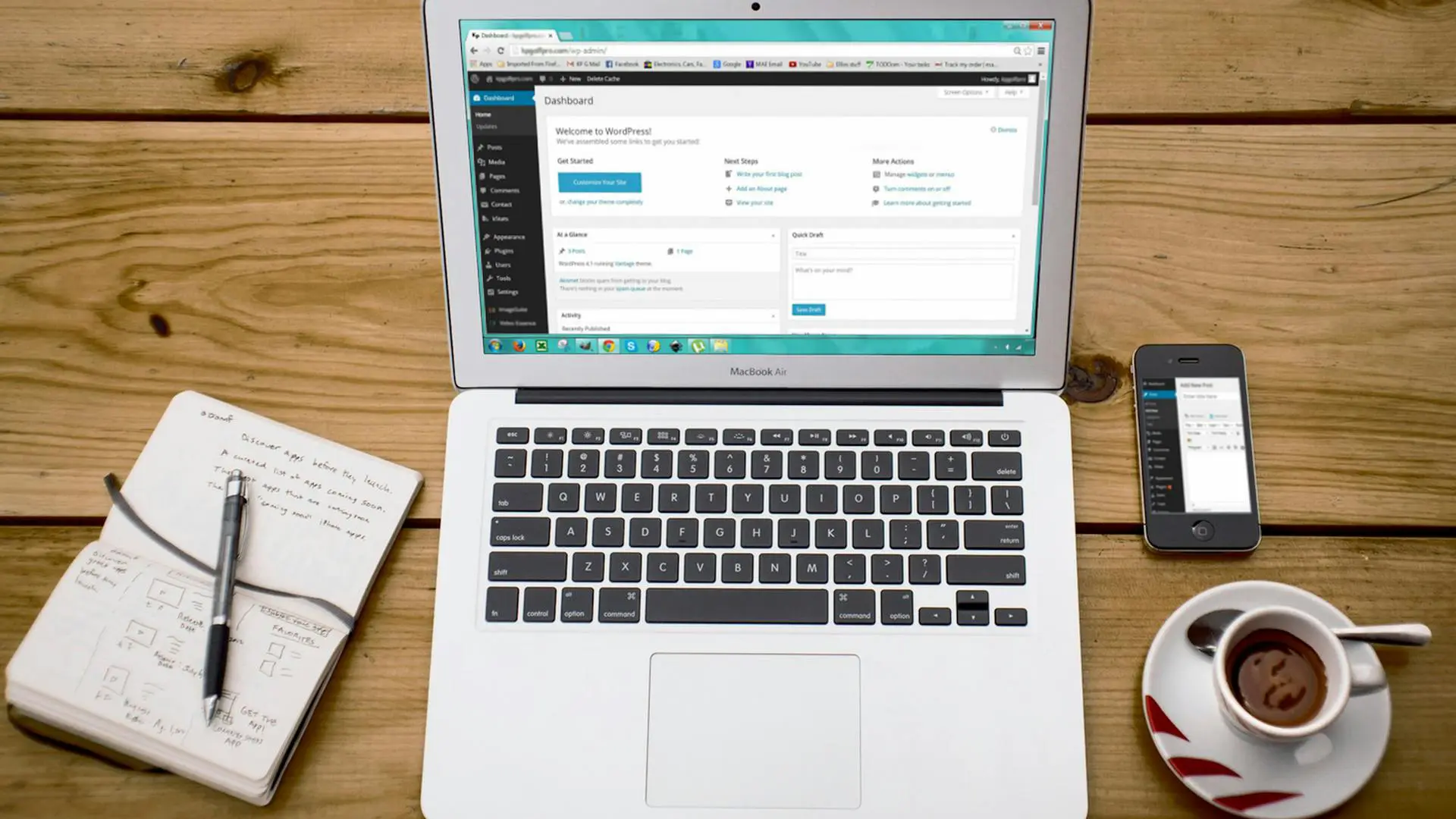
Installing WordPress is a relatively straightforward process, and it can be done in a few simple steps. Here's a general guide to help you install WordPress:
Prerequisites:
1. Domain Name and Web Hosting
- Make sure you have a domain name registered (e.g., yourwebsite.com).
- Choose a web hosting provider. Popular choices include Bluehost, SiteGround, GoDaddy, and HostGator.
2.Web Hosting Account Credentials
- Obtain the necessary login credentials for your web hosting account.
Step-by-Step Installation
1. Access Your Web Hosting Control Panel:
- Log in to your web hosting account.
- Locate the control panel (cPanel is commonly used).
2. Find the "Auto Installers" or "Script Installers" Section
- Look for an option like "Softaculous," "Fantastico," or "QuickInstall."
3. Select WordPress:
- Look for an option like "Softaculous," "Fantastico," or "QuickInstall."
4. Configure WordPress Installation:
- Click on the "Install" button
- Fill out the required information
- Choose the protocol (usually 'http' or 'https').
- Choose the domain where you want to install WordPress.
- Enter the directory (leave it blank if you want to install in the root directory).
5. Set up Site Information:
- Enter a title for your site.
- Create an admin username and password (remember these for logging into WordPress later).
- Enter your admin email address.
6. Access Your Web Hosting Control Panel:
- Some installers allow you to select plugins during installation. You can skip this step if you want
7. Install WordPress:
- Click the "Install" button to start the installation process.
8. Completion:
- Once the installation is complete, you'll receive a confirmation message with your site URL and login details.
9. Access WordPress Admin:
- Visit your WordPress admin dashboard by going to http://yourwebsite.com/wp-admin/ and log in with the admin credentials you set during installation.
Manual Installation
If your hosting provider doesn't have an auto-installer, you can also install WordPress manually by downloading the latest version from the official WordPress website (https://wordpress.org/download/) and following their installation guide.
Keep in mind that specific steps may vary depending on your hosting provider, so it's a good idea to refer to their documentation or support if you encounter any issues.