
Resolving WordPress’s Most Common Errors: An In-Depth Guide to Solutions
Category: Web Development | Wordpress
WordPress is a powerful and versatile content management system, but like any other software, it’s not immune to occasional glitches and errors. If you’ve encountered issues while managing your WordPress site, worry not – you’re not alone. In this guide, we’ll delve into the top 8 frequent errors users often face and provide comprehensive solutions to help you troubleshoot and fix these issues seamlessly.
1. Internal Server Error (HTTP 500):
Internal Server Errors can be caused by a variety of issues, from corrupted plugins to a malfunctioning theme. To resolve this, start by deactivating plugins, checking the theme, and increasing your site’s PHP memory limit. If the problem persists, investigate your server logs for more details.
2. Error Establishing a Database Connection:
This error usually occurs when your site can’t connect to the database. Double-check your database credentials in the wp-config.php file, and ensure your database server is running. If all else fails, contact your hosting provider for assistance.
3. White Screen of Death (WSOD):
A blank white screen is often referred to as the White Screen of Death. It’s usually caused by PHP errors. Enable debugging in WordPress by adding the following line to your wp-config.php file:
define(‘WP_DEBUG’, true);
4. 404 Not Found Error:
The 404 error indicates that the requested page is not found. Check your permalink settings in the WordPress dashboard. If the issue persists, you might need to update your .htaccess file. Go to Settings > Permalinks and click ‘Save Changes’ to refresh your permalink structure.
5. Syntax Error:
A syntax error can occur if there’s a mistake in your code. If you recently edited your theme or plugins, review the changes made. You can either fix the code directly through the WordPress editor or use an FTP client to access your files and correct the error.
6. Mixed Content Warning (HTTP/HTTPS):
Mixed content warnings arise when your site serves both HTTP and HTTPS content. Ensure all your resources (images, scripts, etc.) are loaded using the same protocol as your site. Update your URLs in the WordPress settings and use a plugin like Really Simple SSL to automatically fix mixed content issues.
7. Connection Timed Out Error:
A connection timed out error indicates that your server is taking too long to respond. Increase your site’s PHP memory limit, disable unnecessary plugins, and switch to a default theme to identify the culprit. Additionally, consider upgrading your hosting plan for improved server performance.
8. Login Page Refreshing/Redirecting:
If you find yourself stuck in a login page refresh loop, it could be due to incorrect URL settings or a misconfigured .htaccess file. Update your site and home URL in the WordPress settings, and check for any rogue redirects in the .htaccess file.
Conclusion:
By understanding the common errors and following the steps outlined above, you can tackle WordPress issues head-on. Remember to back up your site before making significant changes and, if needed, seek assistance from your hosting provider or WordPress community forums. With a proactive approach to troubleshooting, you can keep your WordPress site running smoothly and error-free.
Contact us to get more information about it.
Search blogs
Other Blogs
Elementor Not Saving Changes? Step-by-Step Solution
When you are building a page in Elementor and suddenly your changes refuse to save, it can feel extremely frustrating. You click the Update button, the loader spins, and then either nothing happens or an error message appears. Sometimes it even looks like the page...
How to Fix “There Has Been a Critical Error on This Website” in WordPress
If you are running a WordPress website and suddenly see the message “There has been a critical error on this website”, don’t panic. This error looks serious, but in most cases, it can be fixed easily. This message appears when something on your website stops working...
Divi 5 Is Finally Here — A Deep Dive Into the New Interface, Speed, Features & What’s Changed
After years of development and community feedback, Divi 5 has officially launched. But this isn’t just another update to the popular Divi by Elegant Themes — it is a complete architectural transformation. If you’ve explored a Divi 5 demo, you’ll immediately notice how...
How to Fix reCAPTCHA Not Working in WordPress
reCAPTCHA is an essential security feature that protects WordPress websites from spam, bots, and fake form submissions. However, many site owners face issues where reCAPTCHA does not display, fails validation, or blocks legitimate users from submitting forms. If...
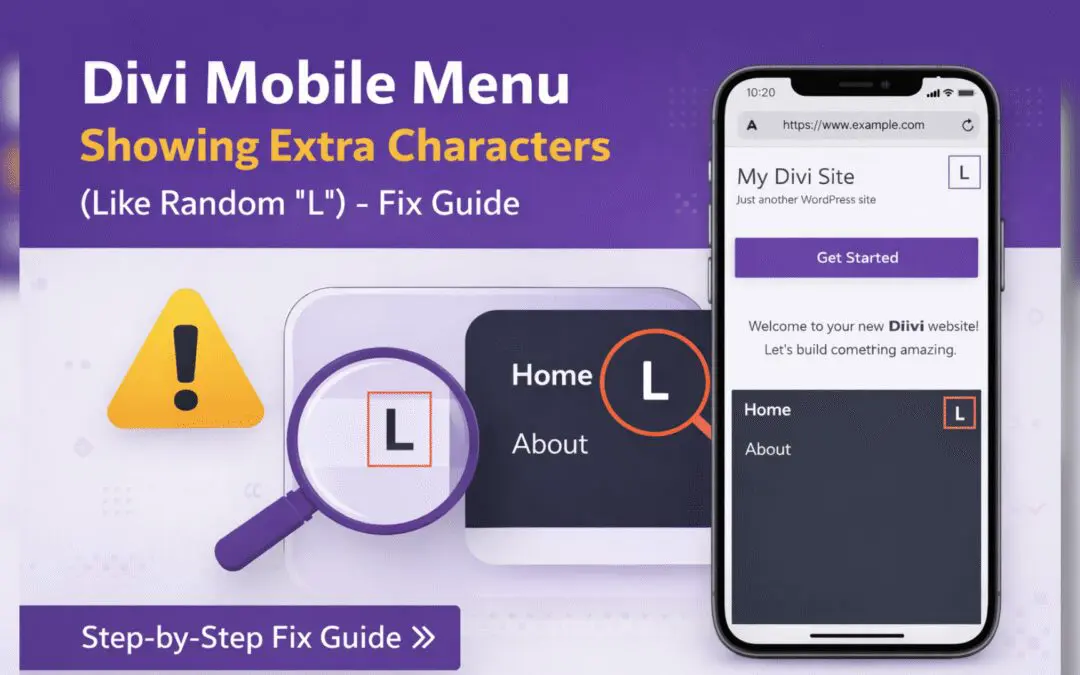
Divi Mobile Menu Showing Extra Characters or Symbols (Like Random “L”) – Fix Guide
If you are using the Divi theme on your WordPress website and notice extra characters or strange symbols (such as a random “L”, square boxes, or broken icons) appearing in the mobile menu, you are not alone. This is a common issue faced by many Divi users, especially...