
What to Do When Divi Fails to Save Your Changes
Category: Wordpress

1. Clear Your Browser Cache
Cached files may prevent the changes from appearing or being saved.
- Clear your browser’s cache and cookies.
- Try using a different browser or opening your site in incognito mode to rule out browser-related issues.
2. Increase PHP Limits on Your Server
Your hosting server may need higher memory or timeout limits for Divi to save changes effectively.
- Contact your hosting provider to adjust the following PHP settings:
- memory_limit to at least 256M.
- max_execution_time to 300 seconds.
- upload_max_filesize and post_max_size to at least 64M.
Alternatively, update these settings in your .htaccess or php.ini file if you have access.
3. Disable Conflicting Plugins
Conflicts between Divi and third-party plugins are common culprits.
- Deactivate all plugins except Divi.
- Test whether the saving issue persists.
- Reactivate plugins one by one to identify the problematic plugin.
4. Update Divi and WordPress
Always keep your software up to date:
- Update Divi to the latest version from your Elegant Themes account.
- Ensure WordPress is running the latest stable version.
Outdated software often contains bugs or compatibility issues that updates are designed to fix.
5.Check File Permissions
Ensure your server has the correct file permissions:- Folders should have permissions set to 755.
- Files should have permissions set to 644.
6. Clear Divi’s Static CSS Cache
Divi uses a static CSS file generation system that can cause saving problems.
- Go to Divi > Theme Options > Builder and click Clear under the “Static CSS File Generation” section.
This forces Divi to regenerate its cache, resolving issues related to stale CSS files.
7. Check for Script Errors
JavaScript errors in the browser console can disrupt Divi’s functionality.
- Open the developer tools in your browser (usually F12 or right-click > Inspect).
- Look for red error messages in the Console tab.
- If errors are related to Divi, report them to Elegant Themes support.
8.Enable Safe Mode
Divi’s Safe Mode disables third-party plugins and custom code temporarily, allowing you to test for conflicts.
- Go to Divi > Support Center and enable Safe Mode.
- Test saving changes.
If Safe Mode resolves the issue, a plugin or custom code is causing the conflict.
Conclusion:
When Divi fails to save changes, it’s usually due to caching, server settings, or conflicts. By following the steps outlined above, you can quickly diagnose and resolve the issue, ensuring a smoother design process moving forward.Contact us to get more information about it.Search blogs
Other Blogs
Elementor Not Saving Changes? Step-by-Step Solution
When you are building a page in Elementor and suddenly your changes refuse to save, it can feel extremely frustrating. You click the Update button, the loader spins, and then either nothing happens or an error message appears. Sometimes it even looks like the page...
How to Fix “There Has Been a Critical Error on This Website” in WordPress
If you are running a WordPress website and suddenly see the message “There has been a critical error on this website”, don’t panic. This error looks serious, but in most cases, it can be fixed easily. This message appears when something on your website stops working...
Divi 5 Is Finally Here — A Deep Dive Into the New Interface, Speed, Features & What’s Changed
After years of development and community feedback, Divi 5 has officially launched. But this isn’t just another update to the popular Divi by Elegant Themes — it is a complete architectural transformation. If you’ve explored a Divi 5 demo, you’ll immediately notice how...
How to Fix reCAPTCHA Not Working in WordPress
reCAPTCHA is an essential security feature that protects WordPress websites from spam, bots, and fake form submissions. However, many site owners face issues where reCAPTCHA does not display, fails validation, or blocks legitimate users from submitting forms. If...
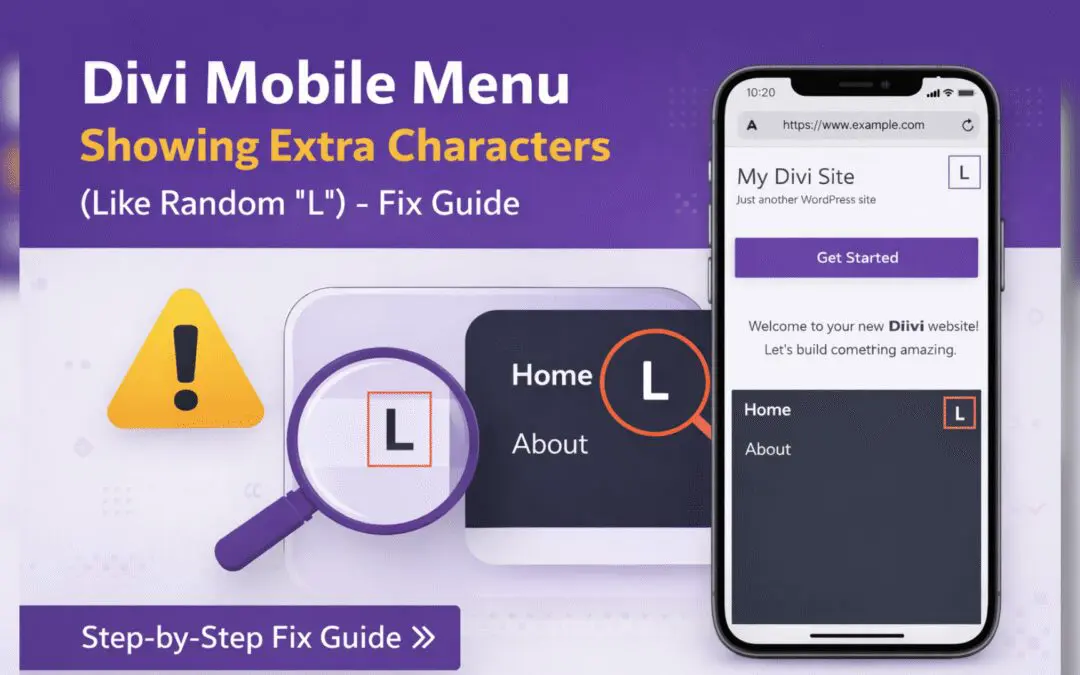
Divi Mobile Menu Showing Extra Characters or Symbols (Like Random “L”) – Fix Guide
If you are using the Divi theme on your WordPress website and notice extra characters or strange symbols (such as a random “L”, square boxes, or broken icons) appearing in the mobile menu, you are not alone. This is a common issue faced by many Divi users, especially...