
Resolving Test Mode Issue in WooCommerce
Category: WooCommerce | Wordpress
The Test Mode Issue in WooCommerce occurs when a store’s payment gateway is still configured to operate in “test” or “sandbox” mode, even after the site is live and ready to process real transactions. Test mode is used during setup to simulate payments without actually charging customers, which allows store owners to ensure the payment process works correctly. However, if test mode is not properly disabled before launching the store, customers attempting to make purchases will see errors or the system will block real payments from being processed.
Here are the steps to disable Test Mode in WooCommerce through Appearance > Customize:
1. Access the Customizer
In your WordPress dashboard, go to Appearance > Customize. This will open the WordPress Theme Customizer, where you can modify your site’s appearance and settings.
2. Locate WooCommerce Settings
Once inside the Customizer, find and click on WooCommerce from the list of options in the left-hand panel. Some themes might have specific WooCommerce settings embedded within the Customizer, including payment-related settings.
3. Find the Payment Settings
In the WooCommerce section, look for Store Notice or Payment options. Depending on your theme, this might be where the test mode option is located.
4. Disable Test Mode
If there’s a Test Mode option in the Customizer, it will likely be a checkbox or toggle switch. Simply uncheck or toggle off Enable Test Mode. This will ensure that your store is no longer in test mode, allowing live transactions to be processed.
5. Save Changes
Once you’ve disabled test mode, click the Publish button at the top of the Customizer to save and apply your changes.
6. Verify the Settings
After disabling test mode, go to your store’s checkout page and make a test purchase to confirm that real transactions are now enabled.
Conclusion
Disabling test mode in WooCommerce is a crucial step before you start accepting live payments. Whether you’re using Stripe, PayPal, Square, or another payment gateway, following the steps above will ensure your store is ready to process real transactions. Always test your settings after disabling test mode to ensure your customers can make payments smoothly.
Contact us to get more information about it.
Search blogs
Other Blogs
Elementor Not Saving Changes? Step-by-Step Solution
When you are building a page in Elementor and suddenly your changes refuse to save, it can feel extremely frustrating. You click the Update button, the loader spins, and then either nothing happens or an error message appears. Sometimes it even looks like the page...
How to Fix “There Has Been a Critical Error on This Website” in WordPress
If you are running a WordPress website and suddenly see the message “There has been a critical error on this website”, don’t panic. This error looks serious, but in most cases, it can be fixed easily. This message appears when something on your website stops working...

Divi 5 Is Finally Here — A Deep Dive Into the New Interface, Speed, Features & What’s Changed
After years of development and community feedback, Divi 5 has officially launched. But this isn’t just another update to the popular Divi by Elegant Themes — it is a complete architectural transformation. If you’ve explored a Divi 5 demo, you’ll immediately notice how...
How to Fix reCAPTCHA Not Working in WordPress
reCAPTCHA is an essential security feature that protects WordPress websites from spam, bots, and fake form submissions. However, many site owners face issues where reCAPTCHA does not display, fails validation, or blocks legitimate users from submitting forms. If...
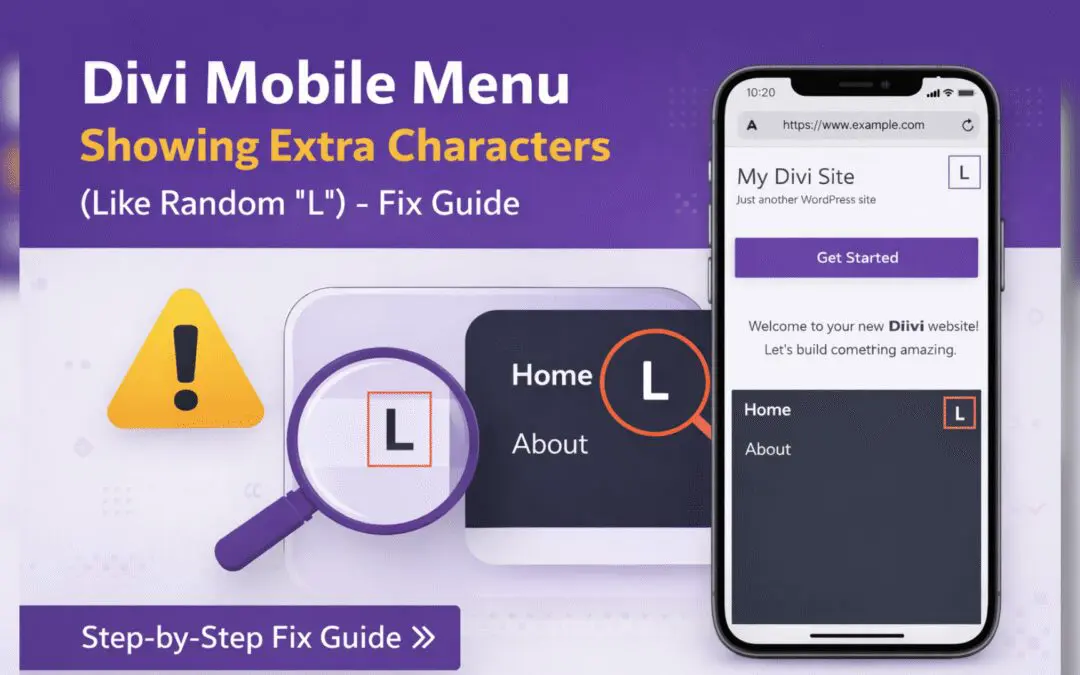
Divi Mobile Menu Showing Extra Characters or Symbols (Like Random “L”) – Fix Guide
If you are using the Divi theme on your WordPress website and notice extra characters or strange symbols (such as a random “L”, square boxes, or broken icons) appearing in the mobile menu, you are not alone. This is a common issue faced by many Divi users, especially...