
Mastering WordPress Maintenance Mode: How to Enable and Customize It
Category: Web Development | Wordpress

Maintaining a WordPress website involves regular updates, plugin installations, and sometimes major overhauls. However, performing these tasks while your site is live can lead to disruptions for your visitors. WordPress Maintenance Mode comes to the rescue, allowing you to gracefully inform visitors that your site is undergoing maintenance. In this guide, we’ll walk through the process of enabling and customizing WordPress Maintenance Mode to ensure a seamless experience for both you and your site’s visitors.
What is WordPress Maintenance Mode?
WordPress Maintenance Mode is a feature that allows you to display a temporary page to visitors while you perform updates or maintenance tasks on your site. It ensures that visitors are aware of the ongoing maintenance and reduces the risk of confusion or frustration.
Enabling WordPress Maintenance Mode
Enabling Maintenance Mode in WordPress is a simple process:
- Choose a Maintenance Mode Plugin: While WordPress has a default Maintenance Mode feature, using a plugin provides more customization options. Some popular plugins include “WP Maintenance Mode” and “Coming Soon Page & Maintenance “
- Install and Activate the Chosen Plugin: Install the selected Maintenance Mode plugin from the WordPress plugin repository and activate it on your site.
- Configure Maintenance Mode Settings: Navigate to the settings page of the plugin to configure the Maintenance Mode settings. Here, you can customize the message displayed to visitors, set a countdown timer, and specify which user roles can bypass Maintenance Mode.
- Enable Maintenance Mode: Once you’ve configured the settings to your liking, enable Maintenance Mode to activate the temporary page. Visitors will now see the Maintenance Mode page when accessing your site.
Customizing Your Maintenance Mode Page
Customizing the Maintenance Mode page allows you to maintain your site’s branding and provide relevant information to visitors. Here are some customization options:
- Message: Craft a clear and concise message informing visitors about the reason for maintenance and when they can expect the site to be back online.
- Countdown Timer: Adding a countdown timer can create anticipation and let visitors know exactly when your site will be accessible again.
- Background Image or Color: Customize the background of the Maintenance Mode page to match your site’s branding or convey a specific message.
- Contact Information: Provide contact details or links to your social media profiles so visitors can reach out for assistance or updates.
Advanced Customization Options
For those looking to further personalize their Maintenance Mode page, consider these advanced customization options:
- Custom HTML/CSS: Some Maintenance Mode plugins allow you to add custom HTML/CSS code to tailor the appearance of the page to your liking.
- Custom Templates: Certain plugins offer pre-designed templates or the ability to create custom templates for the Maintenance Mode page.
Conclusion:
WordPress Maintenance Mode is a valuable feature that allows you to perform updates and maintenance tasks on your site without disrupting the user experience. By enabling and customizing Maintenance Mode, you can ensure that visitors are informed about the temporary downtime and maintain a professional image for your site. Whether you’re performing routine updates or making significant changes, WordPress Maintenance Mode is an essential tool for managing your site’s maintenance effectively.
Contact us to get more information about it.
Search blogs
Other Blogs
Elementor Not Saving Changes? Step-by-Step Solution
When you are building a page in Elementor and suddenly your changes refuse to save, it can feel extremely frustrating. You click the Update button, the loader spins, and then either nothing happens or an error message appears. Sometimes it even looks like the page...
How to Fix “There Has Been a Critical Error on This Website” in WordPress
If you are running a WordPress website and suddenly see the message “There has been a critical error on this website”, don’t panic. This error looks serious, but in most cases, it can be fixed easily. This message appears when something on your website stops working...
Divi 5 Is Finally Here — A Deep Dive Into the New Interface, Speed, Features & What’s Changed
After years of development and community feedback, Divi 5 has officially launched. But this isn’t just another update to the popular Divi by Elegant Themes — it is a complete architectural transformation. If you’ve explored a Divi 5 demo, you’ll immediately notice how...
How to Fix reCAPTCHA Not Working in WordPress
reCAPTCHA is an essential security feature that protects WordPress websites from spam, bots, and fake form submissions. However, many site owners face issues where reCAPTCHA does not display, fails validation, or blocks legitimate users from submitting forms. If...
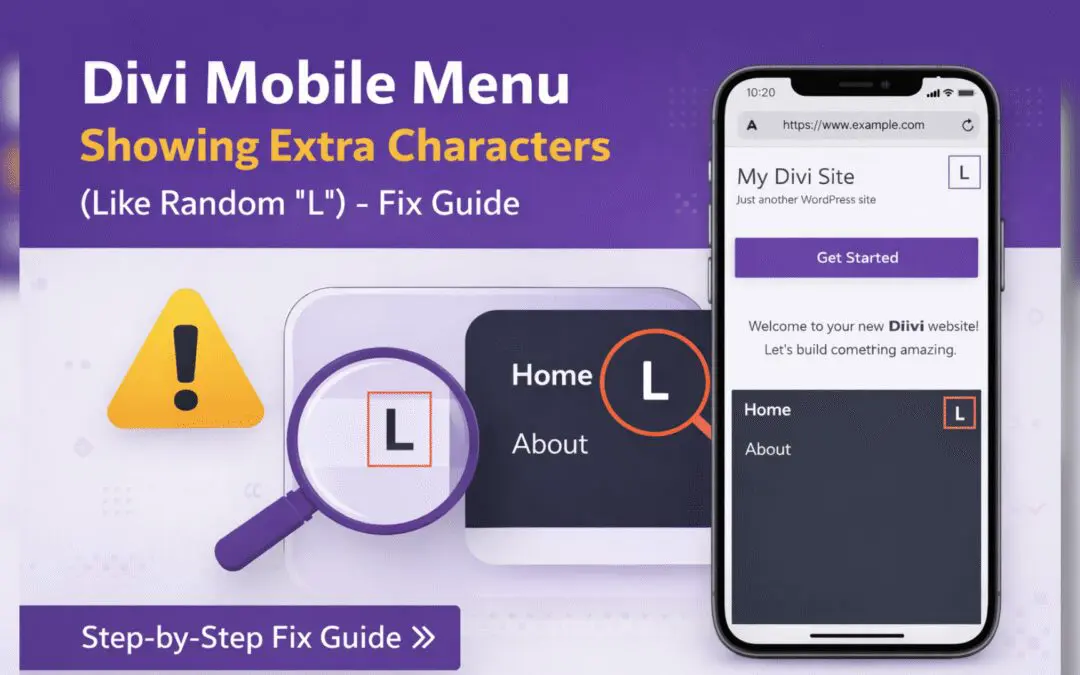
Divi Mobile Menu Showing Extra Characters or Symbols (Like Random “L”) – Fix Guide
If you are using the Divi theme on your WordPress website and notice extra characters or strange symbols (such as a random “L”, square boxes, or broken icons) appearing in the mobile menu, you are not alone. This is a common issue faced by many Divi users, especially...