
How to Back Up Your WordPress Site and Why It’s Crucial
Category: Wordpress

Why Backing Up Your WordPress Site is Crucial
1. Protection Against Data Loss
- Your website may experience data loss due to server crashes, hacking, or errors during updates. A backup ensures you can recover your content and settings.
2. Security Against Cyber Threats
- Websites are often targeted by hackers or malware. Having a backup allows you to restore your site to a secure state quickly.
3. Safeguarding Against Human Errors
- Mistakes happen, such as accidentally deleting important files or pages. With a backup, you can easily undo such errors.
4. Simplifying Site Migrations
- If you decide to switch hosting providers, a backup ensures a seamless migration of your WordPress site without data loss.
How to Back Up Your WordPress Site
There are multiple methods to back up your WordPress site. Here are the most common options:
1. Using a WordPress Plugin
Plugins are the easiest way to back up your site. Popular options include:
- UpdraftPlus: UpdrafPlus user-friendly plugin allows you to schedule automatic backups and store them on cloud services like Google Drive, Dropbox, or Amazon S3.
- Jetpack: Jetpack offers real-time backups and security features.
- BackupBuddy: Backup Buddy is a premium solution with comprehensive backup and restore features.
Steps to Use a Plugin:
- Install and activate the plugin of your choice.
- Configure the backup settings, such as frequency and storage location.
- Run a manual backup or set up automatic backups.
- Verify that the backups are complete and stored securely.
2. Manual Backups
Manual backups provide complete control over the process but require more technical knowledge. You’ll need to back up two main components:
- Website Files: These include themes, plugins, and media uploads. Use an FTP client like FileZilla to download your WordPress files.
- Database: The database contains all your site’s content and settings. Use your hosting provider’s control panel or phpMyAdmin to export the database.
3. Hosting Provider Backups
Many hosting providers offer built-in backup solutions. Check with your host to see if this feature is available. Some hosts provide:
- Automatic daily backups.
- One-click restore options.
- Offsite storage for added security.
Best Practices for Backing Up Your WordPress Site
1. Schedule Regular Backups
- Set up daily or weekly backups depending on how frequently your site is updated.
2. Store Backups in Multiple Locations
- Save backups on cloud services, local devices, or external drives to ensure redundancy.
3. Test Your Backups
- Periodically restore backups to ensure they work correctly and contain all necessary data.
4. Keep Multiple Backup Versions
- Retain a few older backups in case the most recent one is corrupted or incomplete.
Conclusion:
Backing up your WordPress site is not just a precaution; it’s a necessity for ensuring your website’s security and reliability. Whether you use a plugin, manual method, or hosting provider’s tools, having a reliable backup strategy can save you from potential disasters. Start backing up your site today and enjoy peace of mind knowing your content is safe and recoverable.
Contact us to get more information about it.
Search blogs
Other Blogs
Elementor Not Saving Changes? Step-by-Step Solution
When you are building a page in Elementor and suddenly your changes refuse to save, it can feel extremely frustrating. You click the Update button, the loader spins, and then either nothing happens or an error message appears. Sometimes it even looks like the page...
How to Fix “There Has Been a Critical Error on This Website” in WordPress
If you are running a WordPress website and suddenly see the message “There has been a critical error on this website”, don’t panic. This error looks serious, but in most cases, it can be fixed easily. This message appears when something on your website stops working...
Divi 5 Is Finally Here — A Deep Dive Into the New Interface, Speed, Features & What’s Changed
After years of development and community feedback, Divi 5 has officially launched. But this isn’t just another update to the popular Divi by Elegant Themes — it is a complete architectural transformation. If you’ve explored a Divi 5 demo, you’ll immediately notice how...
How to Fix reCAPTCHA Not Working in WordPress
reCAPTCHA is an essential security feature that protects WordPress websites from spam, bots, and fake form submissions. However, many site owners face issues where reCAPTCHA does not display, fails validation, or blocks legitimate users from submitting forms. If...
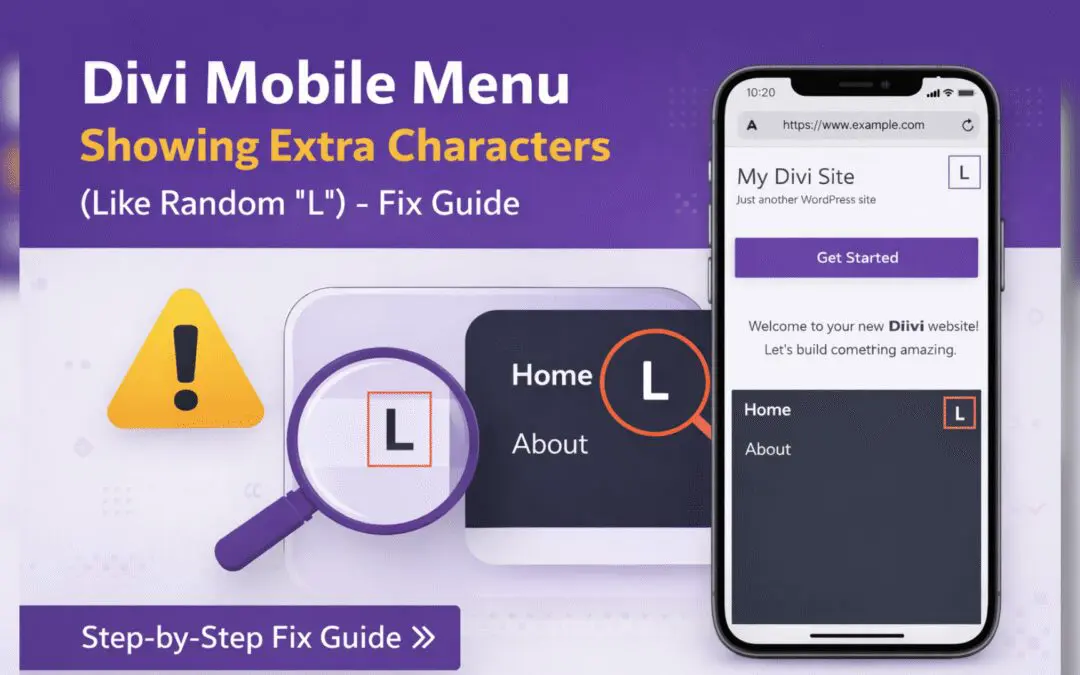
Divi Mobile Menu Showing Extra Characters or Symbols (Like Random “L”) – Fix Guide
If you are using the Divi theme on your WordPress website and notice extra characters or strange symbols (such as a random “L”, square boxes, or broken icons) appearing in the mobile menu, you are not alone. This is a common issue faced by many Divi users, especially...