
Securing your website with SSL (Secure Sockets Layer) encryption is crucial for protecting sensitive data and ensuring trust among your visitors. However, when implementing SSL on a WordPress site using the Divi theme, users may encounter various errors and challenges. In this guide, we’ll explore common SSL/HTTPS errors specific to Divi websites and provide step-by-step solutions to address them effectively.
Understanding Divi SSL/HTTPS Errors:
SSL/HTTPS errors in Divi websites can manifest in different ways, including:
- Mixed Content Warnings: When elements (such as images, scripts, or stylesheets) on a secure page are loaded over insecure HTTP connections, causing browsers to display mixed content warnings.
- Insecure Links: Internal or external links within the website that are hardcoded with HTTP instead of HTTPS, leading to security warnings or broken links.
- Insecure Resources: Third-party resources, such as fonts or scripts, loaded by Divi or its plugins over HTTP connections instead of HTTPS, triggering security alerts.
Now, let’s delve into specific SSL/HTTPS errors commonly encountered in Divi websites and provide solutions to fix them:
Mixed Content Warnings:
Symptom: Browsers display mixed content warnings or “Not Secure” indicators in the address bar due to insecure elements on the page.
Solution:
- Use SSL/TLS throughout: Ensure that all resources loaded by your website, including images, scripts, and stylesheets, are served over HTTPS. Update any hardcoded URLs in your content and theme files to use HTTPS.
- Enable HTTPS for Divi assets: Check Divi’s settings and options to ensure that assets, such as images and scripts generated by the theme or its builder, are loaded securely. Update any insecure URLs to HTTPS where necessary.
- Use SSL-friendly plugins: Verify that plugins used on your Divi website are compatible with SSL and configured to load resources securely. Disable or replace any plugins that continue to load content over HTTP.
Insecure Links:
Symptom: Internal or external links within the website point to HTTP URLs instead of HTTPS, resulting in security warnings or broken links.
Solution:
- Update links site-wide: Use a search and replace tool or a plugin to update all HTTP links in your website’s database to HTTPS. This ensures that all internal links point to secure URLs.
- Check custom code and settings: Review any custom code snippets or theme settings that may include hardcoded HTTP URLs. Update these URLs to use HTTPS to avoid mixed content issues.
- Implement 301 redirects: Set up 301 redirects from HTTP URLs to their HTTPS counterparts using server configuration or a redirection plugin. This ensures that visitors and search engines are directed to the secure version of your website.
Insecure Resources:
Symptom: Third-party resources, such as fonts, scripts, or embeds, loaded by Divi or its plugins over HTTP connections instead of HTTPS.
Solution:
- Update resource URLs: Identify and update any hardcoded URLs in your theme files, plugin settings, or custom code to use HTTPS for third-party resources. This may include Google Fonts, social media scripts, or embedded content.
- Utilize HTTPS-compatible providers: Choose service providers and integrations that support HTTPS by default. Opt for HTTPS-compatible alternatives if your current providers do not offer secure connections.
- Verify plugin settings: Review settings and options within Divi and its plugins to ensure that external resources are configured to load securely over HTTPS. Adjust settings or switch to alternative solutions if necessary.
Conclusion:
Securing your Divi website with SSL/HTTPS encryption is essential for protecting user data, building trust, and improving search engine rankings. By understanding common SSL/HTTPS errors specific to Divi websites and following the solutions provided in this guide, you can effectively address security issues and ensure a seamless browsing experience for your visitors. Remember to test your website thoroughly after implementing SSL/HTTPS fixes to verify that all resources are loaded securely and that no mixed content warnings are present. With a proactive approach to SSL/HTTPS implementation and maintenance, you can safeguard your Divi website and maintain its integrity and security over time.
Contact us to get more information about it.
Search blogs
Other Blogs
Elementor Not Saving Changes? Step-by-Step Solution
When you are building a page in Elementor and suddenly your changes refuse to save, it can feel extremely frustrating. You click the Update button, the loader spins, and then either nothing happens or an error message appears. Sometimes it even looks like the page...
How to Fix “There Has Been a Critical Error on This Website” in WordPress
If you are running a WordPress website and suddenly see the message “There has been a critical error on this website”, don’t panic. This error looks serious, but in most cases, it can be fixed easily. This message appears when something on your website stops working...
Divi 5 Is Finally Here — A Deep Dive Into the New Interface, Speed, Features & What’s Changed
After years of development and community feedback, Divi 5 has officially launched. But this isn’t just another update to the popular Divi by Elegant Themes — it is a complete architectural transformation. If you’ve explored a Divi 5 demo, you’ll immediately notice how...
How to Fix reCAPTCHA Not Working in WordPress
reCAPTCHA is an essential security feature that protects WordPress websites from spam, bots, and fake form submissions. However, many site owners face issues where reCAPTCHA does not display, fails validation, or blocks legitimate users from submitting forms. If...
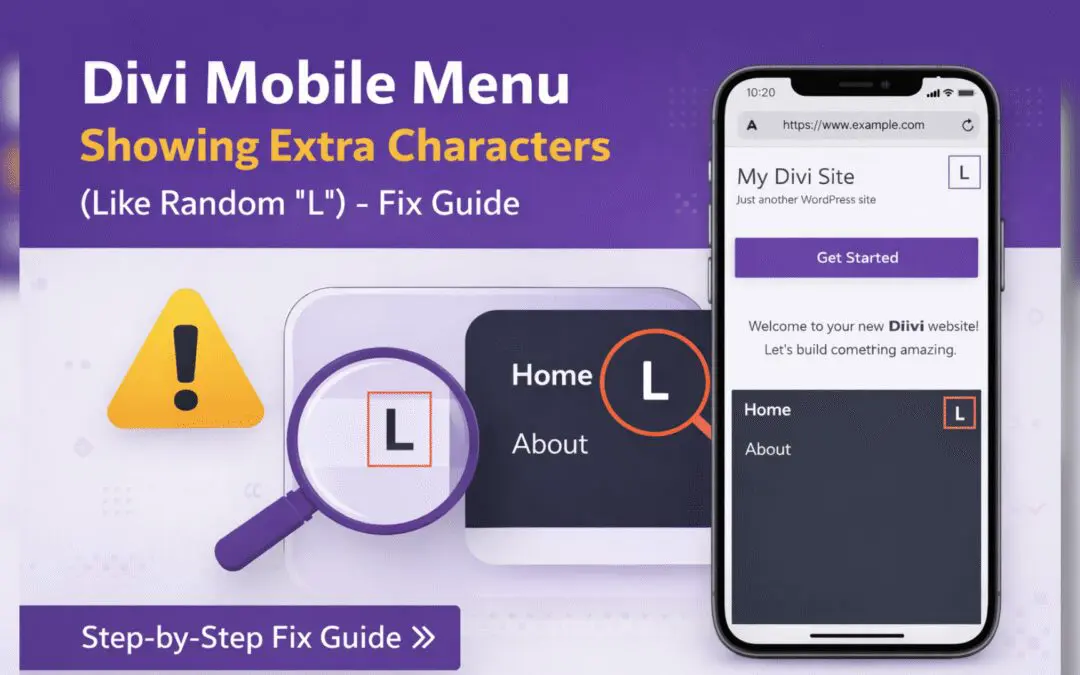
Divi Mobile Menu Showing Extra Characters or Symbols (Like Random “L”) – Fix Guide
If you are using the Divi theme on your WordPress website and notice extra characters or strange symbols (such as a random “L”, square boxes, or broken icons) appearing in the mobile menu, you are not alone. This is a common issue faced by many Divi users, especially...