
Easy Steps to Install WordPress: A Beginner’s Guide
Category: Web Development | Wordpress
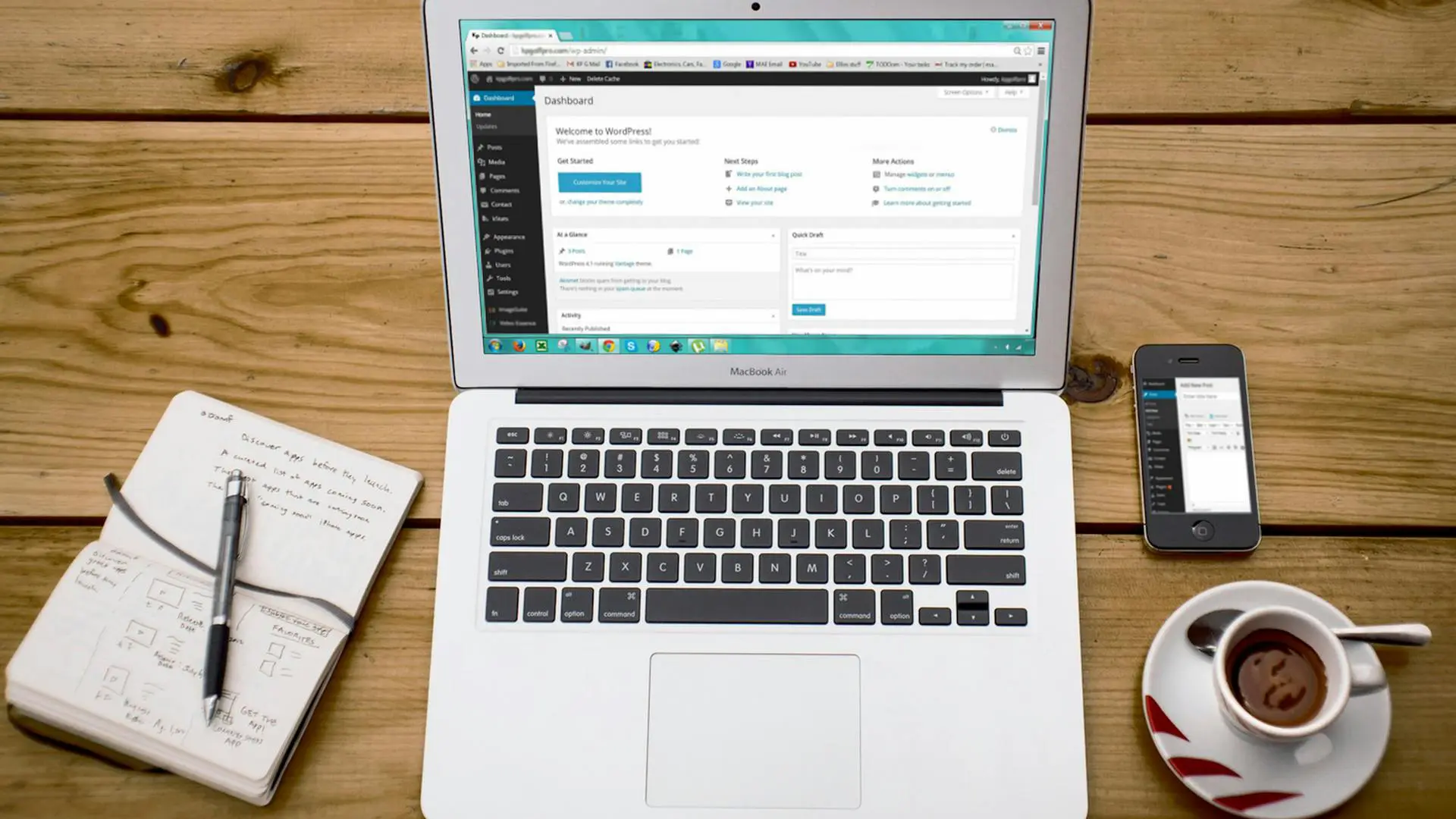
Installing WordPress is a relatively straightforward process, and it can be done in a few simple steps. Here’s a general guide to help you install WordPress:
Prerequisites:
1. Domain Name and Web Hosting
- Make sure you have a domain name registered (e.g., yourwebsite.com).
- Choose a web hosting provider. Popular choices include Bluehost, SiteGround, GoDaddy, and HostGator.
2.Web Hosting Account Credentials
- Obtain the necessary login credentials for your web hosting account.
Step-by-Step Installation
1. Access Your Web Hosting Control Panel:
- Log in to your web hosting account.
- Locate the control panel (cPanel is commonly used).
2. Find the “Auto Installers” or “Script Installers” Section
- Look for an option like “Softaculous,” “Fantastico,” or “QuickInstall.”
3. Select WordPress:
- Look for an option like “Softaculous,” “Fantastico,” or “QuickInstall.”
4. Configure WordPress Installation:
- Click on the “Install” button
- Fill out the required information
- Choose the protocol (usually ‘http’ or ‘https’).
- Choose the domain where you want to install WordPress.
- Enter the directory (leave it blank if you want to install in the root directory).
5. Set up Site Information:
- Enter a title for your site.
- Create an admin username and password (remember these for logging into WordPress later).
- Enter your admin email address.
6. Access Your Web Hosting Control Panel:
- Some installers allow you to select plugins during installation. You can skip this step if you want
7. Install WordPress:
- Click the “Install” button to start the installation process.
8. Completion:
- Once the installation is complete, you’ll receive a confirmation message with your site URL and login details.
9. Access WordPress Admin:
- Visit your WordPress admin dashboard by going to http://yourwebsite.com/wp-admin/ and log in with the admin credentials you set during installation.
Manual Installation
If your hosting provider doesn’t have an auto-installer, you can also install WordPress manually by downloading the latest version from the official WordPress website (https://wordpress.org/download/) and following their installation guide.
Keep in mind that specific steps may vary depending on your hosting provider, so it’s a good idea to refer to their documentation or support if you encounter any issues.
Search blogs
Other Blogs
Elementor Not Saving Changes? Step-by-Step Solution
When you are building a page in Elementor and suddenly your changes refuse to save, it can feel extremely frustrating. You click the Update button, the loader spins, and then either nothing happens or an error message appears. Sometimes it even looks like the page...
How to Fix “There Has Been a Critical Error on This Website” in WordPress
If you are running a WordPress website and suddenly see the message “There has been a critical error on this website”, don’t panic. This error looks serious, but in most cases, it can be fixed easily. This message appears when something on your website stops working...
Divi 5 Is Finally Here — A Deep Dive Into the New Interface, Speed, Features & What’s Changed
After years of development and community feedback, Divi 5 has officially launched. But this isn’t just another update to the popular Divi by Elegant Themes — it is a complete architectural transformation. If you’ve explored a Divi 5 demo, you’ll immediately notice how...
How to Fix reCAPTCHA Not Working in WordPress
reCAPTCHA is an essential security feature that protects WordPress websites from spam, bots, and fake form submissions. However, many site owners face issues where reCAPTCHA does not display, fails validation, or blocks legitimate users from submitting forms. If...
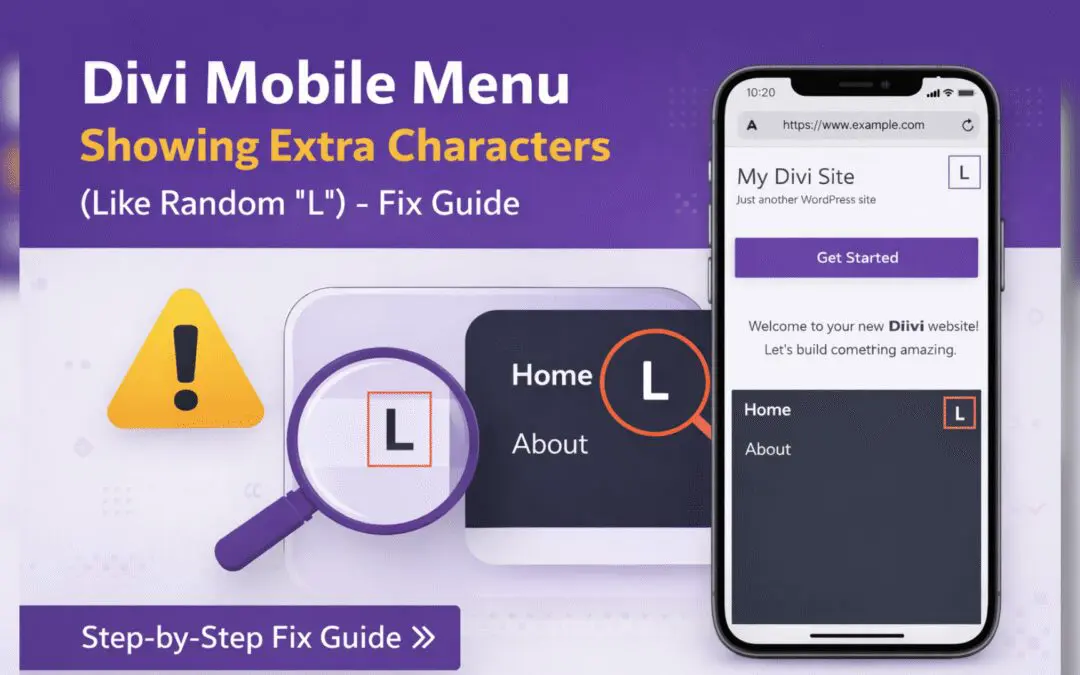
Divi Mobile Menu Showing Extra Characters or Symbols (Like Random “L”) – Fix Guide
If you are using the Divi theme on your WordPress website and notice extra characters or strange symbols (such as a random “L”, square boxes, or broken icons) appearing in the mobile menu, you are not alone. This is a common issue faced by many Divi users, especially...