
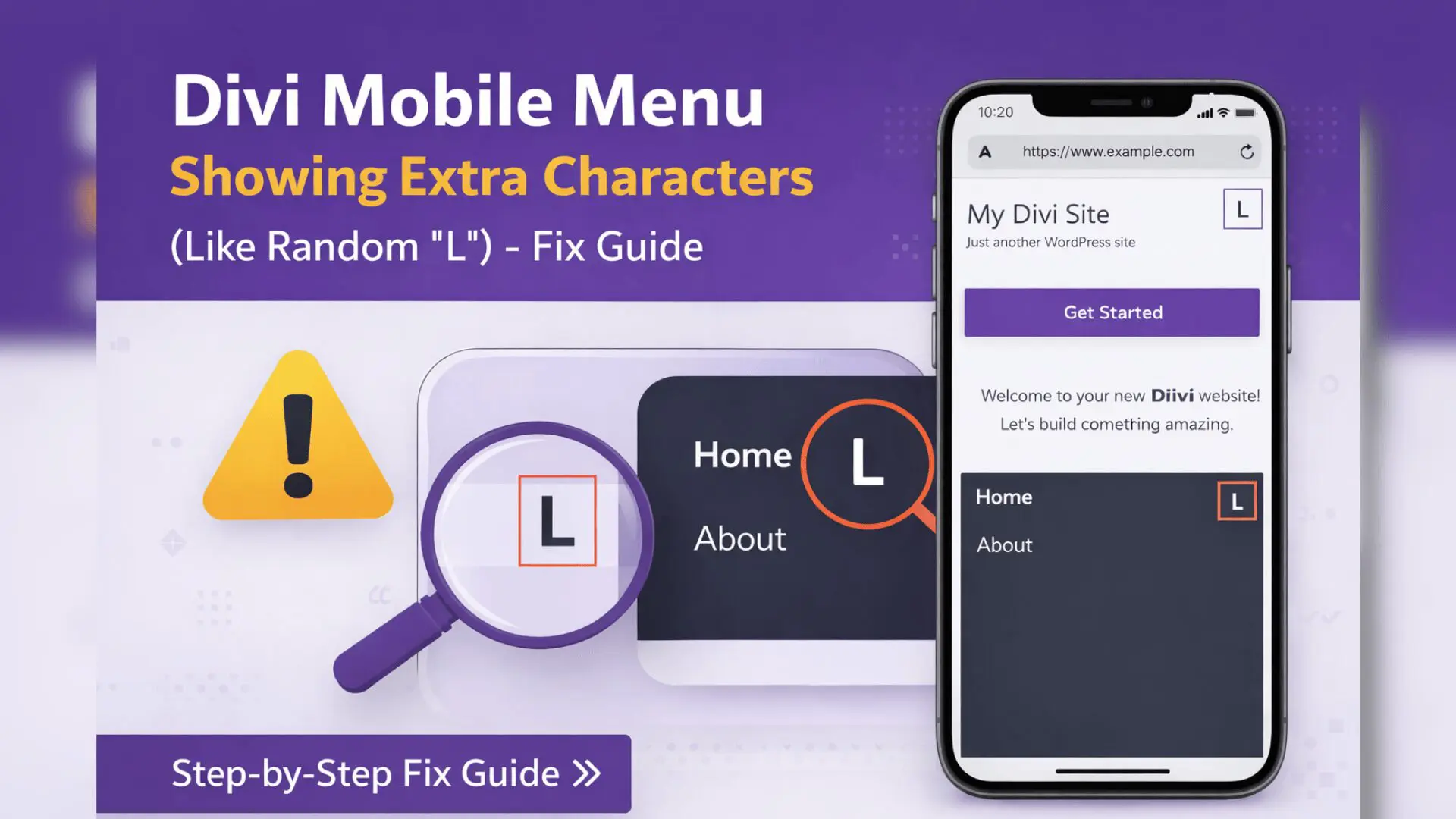
If you are using the Divi theme on your WordPress website and notice extra characters or strange symbols (such as a random “L”, square boxes, or broken icons) appearing in the mobile menu, you are not alone. This is a common issue faced by many Divi users, especially after theme updates, speed optimization, or custom styling changes.
In this guide, you will learn:
- What causes extra characters to appear in the Divi mobile menu
- Why the issue often shows only on mobile devices
- Simple, step-by-step solutions to fix the problem
- How to prevent it from happening again in the future
What Is the Divi Mobile Menu Extra Character Issue?
Divi uses a special icon font to display the hamburger menu icon on mobile devices. When this icon font does not load correctly, the browser cannot display the icon and instead shows random letters or symbols (such as “L”, boxes, or strange characters).
This problem usually appears:
- Only on mobile or tablet devices
- After updating Divi or WordPress
- After enabling cache or performance optimization plugins
- After adding custom CSS or third-party icon libraries
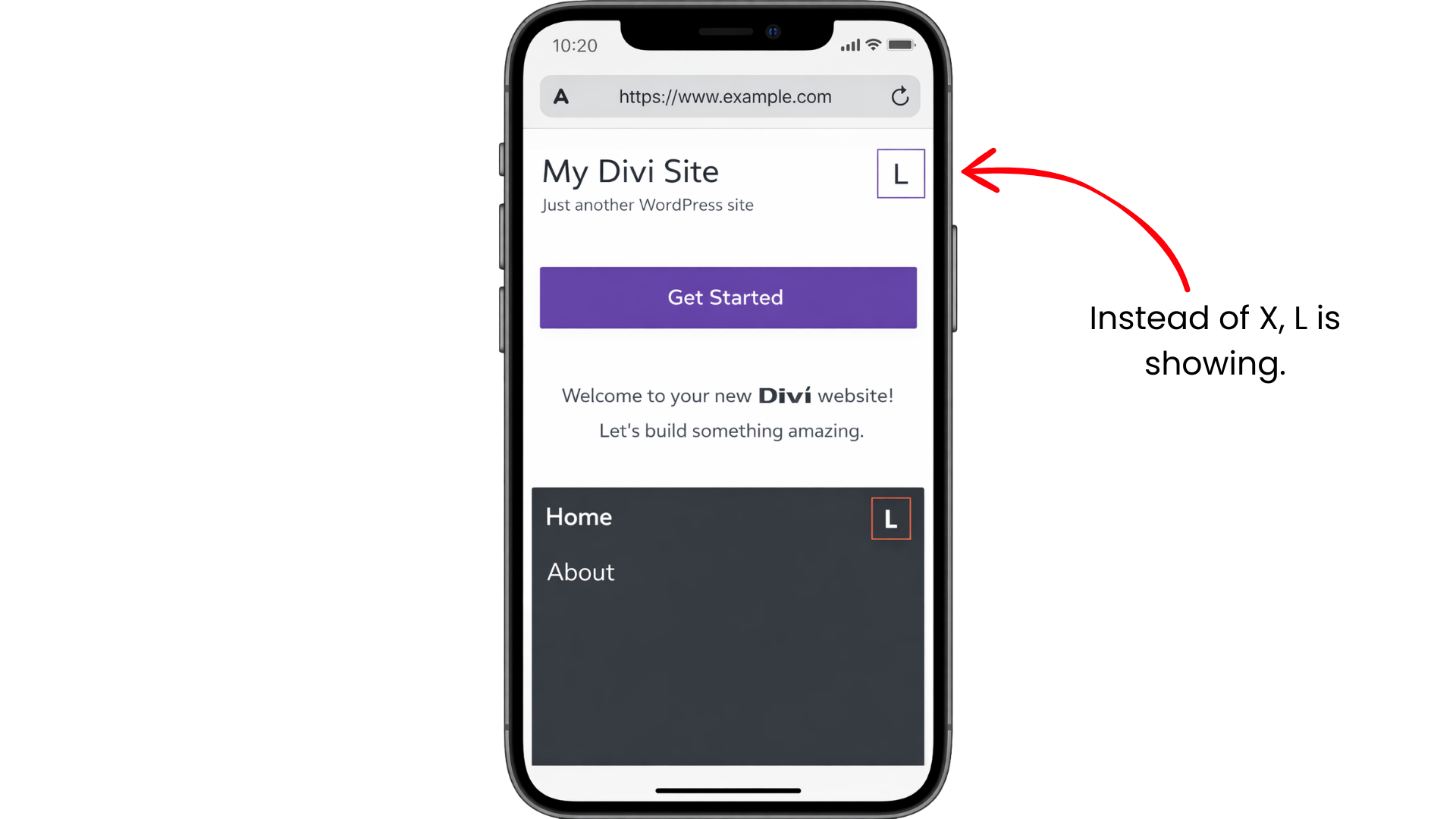
Common Causes of Extra Characters in Divi Mobile Menu
1. Divi Icon Font Not Loading Properly
Divi relies on its own icon font (ETModules). If these font files fail to load because of server issues, CDN restrictions, or blocked resources, the icons will not render correctly and random characters may appear.
2. Cache or Optimization Plugins
Caching and performance plugins sometimes combine or minify CSS and font files. This can break the connection between Divi and its icon fonts, causing the mobile menu icon to display incorrectly.
3. Incorrect Custom CSS
Custom CSS added to the theme or child theme may unintentionally add content to the mobile menu icon using :before or :after pseudo-elements. This can force text like “L” to appear in place of the icon.
4. Conflict With Icon Libraries (Font Awesome, etc.)
Loading external icon libraries such as Font Awesome can override Divi’s icon font styles. When both libraries try to control the same elements, it can result in broken or incorrect icons.
5. Mixed Content Issues (HTTP vs HTTPS)
If your website runs on HTTPS but Divi’s font files are loaded over HTTP, modern browsers may block these files for security reasons. When the font is blocked, icons fail to display and random characters appear.
Step-by-Step Guide to Fix the Issue
Follow these steps one by one. You don’t need to do all of them – usually one fix works.
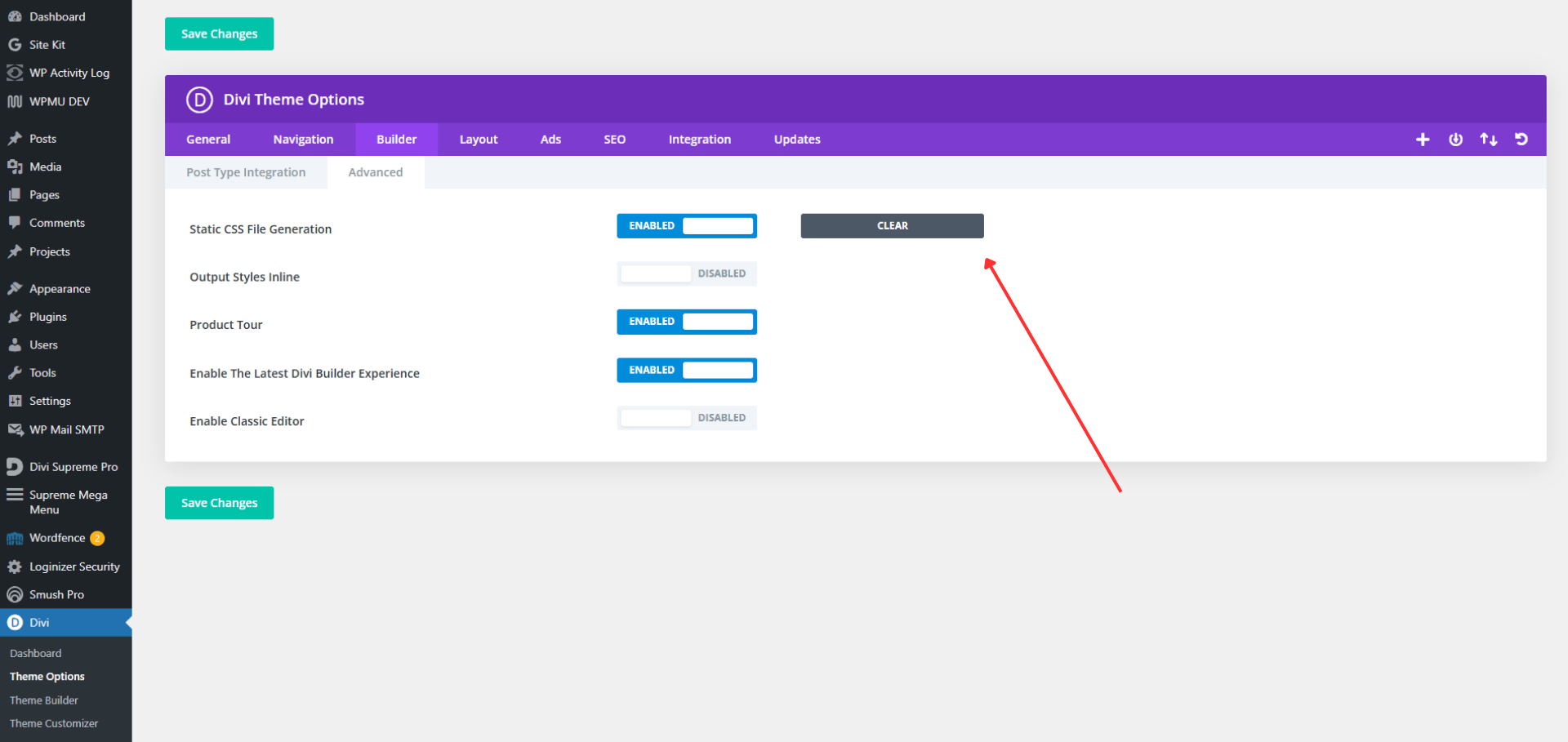
Step 1: Clear Divi’s Static CSS Files
- Go to WordPress Dashboard → Divi → Theme Options
- Navigate to Builder → Advanced
- Click the Clear button next to “Static CSS File Generation”
- Click Save Changes
- Clear your website cache and browser cache
Step 2: Add a CSS Fix for the Mobile Menu Icon
Go to Divi → Theme Options → Custom CSS and add:
font-family: ‘ETmodules’ !important;
content: ‘\61’ !important;
}
This forces Divi to use the correct icon font for the mobile menu.
Step 3: Temporarily Disable Cache/Optimization Plugins
Disable your caching or optimization plugin and check if the issue is resolved. If the menu icon displays correctly after disabling the plugin, adjust the plugin settings to exclude Divi’s CSS and font files from minification or combination.
Step 4: Check and Remove Problematic Custom CSS
Review any custom CSS added to your theme or child theme, especially code targeting:
- .mobile_menu_bar
- .et_mobile_menu
Remove any content: values added using :before or :after.
Step 5: Ensure Fonts Are Loading Over HTTPS
Make sure all font files are loading over HTTPS. If your site recently switched to SSL, use an SSL plugin or update URLs to avoid mixed content errors.
Why This Issue Usually Appears Only on Mobile
Divi uses different menu structures and icons for mobile devices compared to desktop. The desktop menu does not rely on the same icon font for display, which is why the issue often appears only on mobile while the desktop menu looks normal.
How to Prevent This Problem in the Future
- Clear Divi cache after every update
- Avoid unnecessary custom CSS on menu icons
- Be cautious when using multiple icon libraries
- Test your website on mobile after installing new plugins
- Review optimization plugin settings carefully
Conclusion
Extra characters or symbols in the Divi mobile menu are usually caused by icon font loading issues or CSS conflicts. By clearing Divi’s cache, checking custom CSS, and ensuring icon fonts load correctly, you can fix the problem quickly and restore the proper mobile menu icon.
If the issue still persists, reviewing your optimization plugin settings or checking for HTTPS font loading errors will usually resolve it.
Search blogs
Other Blogs
Elementor Not Saving Changes? Step-by-Step Solution
When you are building a page in Elementor and suddenly your changes refuse to save, it can feel extremely frustrating. You click the Update button, the loader spins, and then either nothing happens or an error message appears. Sometimes it even looks like the page...
How to Fix “There Has Been a Critical Error on This Website” in WordPress
If you are running a WordPress website and suddenly see the message “There has been a critical error on this website”, don’t panic. This error looks serious, but in most cases, it can be fixed easily. This message appears when something on your website stops working...
Divi 5 Is Finally Here — A Deep Dive Into the New Interface, Speed, Features & What’s Changed
After years of development and community feedback, Divi 5 has officially launched. But this isn’t just another update to the popular Divi by Elegant Themes — it is a complete architectural transformation. If you’ve explored a Divi 5 demo, you’ll immediately notice how...
How to Fix reCAPTCHA Not Working in WordPress
reCAPTCHA is an essential security feature that protects WordPress websites from spam, bots, and fake form submissions. However, many site owners face issues where reCAPTCHA does not display, fails validation, or blocks legitimate users from submitting forms. If...
Common SEO Mistakes That Hurt Your Website Rankings
You’ve published great content, optimized your website, and waited for the rankings to roll in — but your traffic still isn’t growing. Sound familiar? The truth is, many websites unknowingly make SEO mistakes that silently kill their visibility in Google search...