
Designing for All: Ensuring Accessibility in Your Divi Website
Category: Plugins | Web Development
Making your Divi website accessible is important. It ensures everyone can use your site, including people with disabilities. Here’s a simple guide to design your Divi site with accessibility in mind:
1. Choose Accessible Colors:
Use color combinations that have sufficient contrast to make text readable for users with visual impairments. Divi provides color contrast options in its settings, allowing you to easily adjust text and background colors for better readability.
2. Use Semantic HTML:
Structure your content using semantic HTML elements such as headings (h1, h2, etc.), paragraphs, lists, and landmarks (like header, main, nav, etc.). This helps screen readers and other assistive technologies to properly interpret and navigate your content.
3. Provide Alternative Text for Images:
Always include descriptive alternative text (alt text) for images to provide context for users who cannot see them. Divi allows you to add alt text to images directly within its interface when adding or editing an image module.
4. Ensure Keyboard Accessibility:
Make sure your website can be navigated and interacted with using only a keyboard. Test your website’s navigation, forms, and interactive elements using only the tab key to ensure all functionality is accessible to keyboard users.
5. Implement ARIA Roles and Attributes:
Use ARIA roles and attributes to make dynamic content more accessible. This includes sliders, accordions, and modal dialogs. Divi lets you add ARIA labels and roles to modules for better accessibility.
6. Provide Descriptive Link Text:
Use descriptive link text that clearly indicates the destination or purpose of the link. Avoid using generic phrases like “click here” or “read more” as they can be ambiguous for screen reader users. Divi allows you to customize link text easily within its modules.
7. Ensure Readability and Scalability:
Use clear and legible fonts with adequate spacing between lines and paragraphs. Avoid using small font sizes or decorative fonts that may be difficult to read, especially for users with visual impairments. Divi provides options to adjust font sizes and spacing for improved readability.
8. Test with Accessibility Tools:
Use accessibility evaluation tools such as WAVE (Web Accessibility Evaluation Tool) or the accessibility features built into web browsers like Chrome and Firefox to identify accessibility issues on your Divi website. Address any issues found to ensure compliance with accessibility standards.
9. Provide Captions and Transcripts for Multimedia:
Include captions or transcripts for multimedia content such as videos and audio recordings to make them accessible to users who are deaf or hard of hearing. Divi allows you to add captions to videos using the Video module’s settings.
10. Stay Informed and Updated:
Keep yourself informed about the latest accessibility guidelines and best practices, and regularly update your Divi website to incorporate new features and improvements related to accessibility.
Conclusion:
By following these guidelines and best practices, you can ensure that your Divi website is accessible to all users, regardless of their abilities or disabilities, providing a better user experience for everyone.
Search blogs
Other Blogs
Elementor Not Saving Changes? Step-by-Step Solution
When you are building a page in Elementor and suddenly your changes refuse to save, it can feel extremely frustrating. You click the Update button, the loader spins, and then either nothing happens or an error message appears. Sometimes it even looks like the page...
How to Fix “There Has Been a Critical Error on This Website” in WordPress
If you are running a WordPress website and suddenly see the message “There has been a critical error on this website”, don’t panic. This error looks serious, but in most cases, it can be fixed easily. This message appears when something on your website stops working...
Divi 5 Is Finally Here — A Deep Dive Into the New Interface, Speed, Features & What’s Changed
After years of development and community feedback, Divi 5 has officially launched. But this isn’t just another update to the popular Divi by Elegant Themes — it is a complete architectural transformation. If you’ve explored a Divi 5 demo, you’ll immediately notice how...

How to Fix reCAPTCHA Not Working in WordPress
reCAPTCHA is an essential security feature that protects WordPress websites from spam, bots, and fake form submissions. However, many site owners face issues where reCAPTCHA does not display, fails validation, or blocks legitimate users from submitting forms. If...
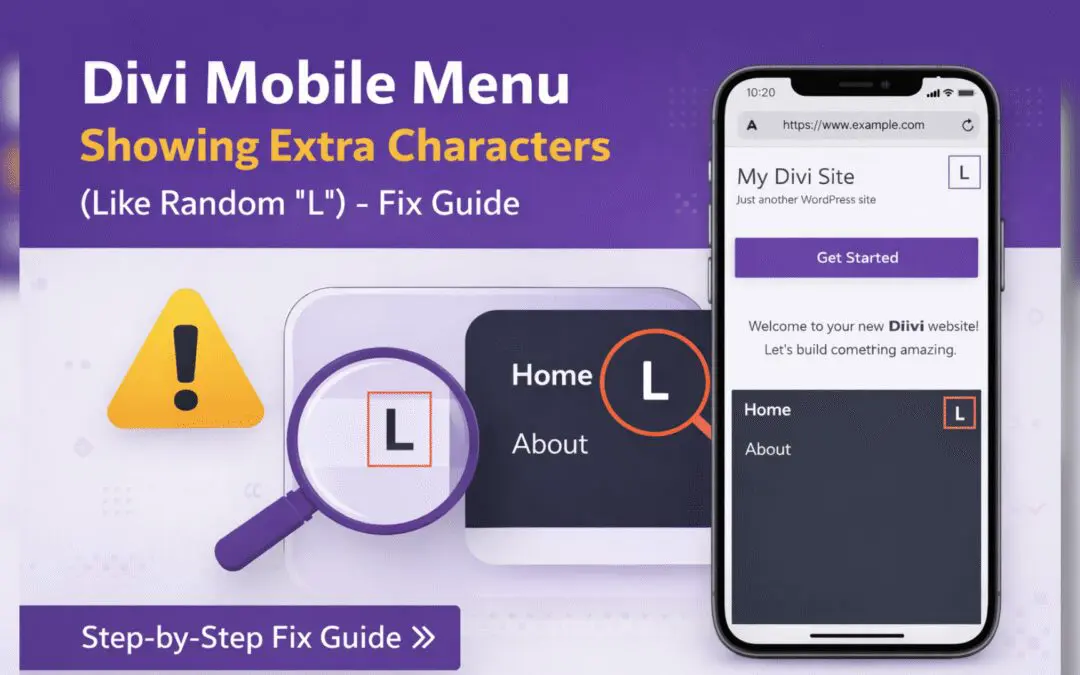
Divi Mobile Menu Showing Extra Characters or Symbols (Like Random “L”) – Fix Guide
If you are using the Divi theme on your WordPress website and notice extra characters or strange symbols (such as a random “L”, square boxes, or broken icons) appearing in the mobile menu, you are not alone. This is a common issue faced by many Divi users, especially...