
Addressing WordPress Update Errors: What to Do When Updates Fail
Category: Wordpress
WordPress updates are crucial for keeping your website secure, stable, and up-to-date with the latest features and improvements. However, encountering errors during the update process can be frustrating and potentially disruptive to your site’s functionality. In this guide, we’ll discuss common WordPress update errors, their possible causes, and practical steps to troubleshoot and resolve them effectively.
1. Understanding WordPress Update Errors
- Importance of Updates: WordPress updates include core software updates, theme updates, and plugin updates, each addressing security vulnerabilities, bug fixes, and performance enhancements.
- Types of Errors: Update errors can manifest as various messages, such as “Failed to update core,” “Update failed,” or “Unable to update plugin/theme.”
- Impact: Failed updates can leave your website vulnerable to security breaches, compatibility issues, and performance degradation.
2. Common Causes of Update Failures
- Server Configuration Issues: Incompatible server settings, insufficient file permissions, or resource limitations can prevent updates from completing successfully.
- Plugin/Theme Conflicts: Incompatible plugins or themes may conflict with the update process, causing errors or unexpected behavior.
- Connectivity Problems: Poor internet connection, server downtime, or network issues can interrupt the update process and result in failures.
- Software Bugs: Occasionally, bugs within WordPress core, themes, or plugins may cause update errors, requiring patches or fixes from developers.
3. Troubleshooting WordPress Update Errors
- Check Server Configuration: Ensure that your server meets the minimum requirements for running WordPress and review file permissions to ensure they are set correctly.
- Disable Plugins/Themes: Temporarily deactivate all plugins and switch to a default WordPress theme (e.g., Twenty Twenty-One) to rule out conflicts with third-party extensions.
- Retry Update: Attempt to update WordPress, themes, or plugins again after addressing any identified issues or conflicts.
- Manual Updates: If automatic updates fail, consider performing manual updates by downloading the latest versions of WordPress core, themes, or plugins from the official sources and uploading them via FTP or file manager.
4. Additional Steps for Troubleshooting
- Clear Cache: Clear browser cache and website cache (if using caching plugins) to ensure that you’re viewing the most recent versions of files and assets.
- Review Error Logs: Check error logs in your hosting control panel or WordPress debug log to identify specific errors or warning messages that may provide insights into the root cause of update failures.
- Seek Expert Assistance: If you’re unable to resolve update errors on your own, consider reaching out to your web hosting provider or hiring a WordPress developer for assistance.
5. Preventative Measures
- Regular Backups: Prioritize regular backups of your WordPress site to mitigate the impact of update failures or unexpected issues.
- Staging Environment: Test updates in a staging environment before applying them to your live site to identify and address potential conflicts or errors in a controlled environment.
- Stay Informed: Stay informed about WordPress best practices, security advisories, and update releases to proactively address vulnerabilities and minimize the risk of update failures.
Conclusion:
Encountering errors during WordPress updates can be frustrating, but with the right approach and troubleshooting techniques, most issues can be resolved effectively. By understanding the common causes of update failures, taking proactive measures to prevent issues, and knowing how to troubleshoot when errors occur, you can ensure a smooth and secure update process for your WordPress site, keeping it running optimally and protected against potential threats.
Contact us to get more information about it.
Search blogs
Other Blogs
Elementor Not Saving Changes? Step-by-Step Solution
When you are building a page in Elementor and suddenly your changes refuse to save, it can feel extremely frustrating. You click the Update button, the loader spins, and then either nothing happens or an error message appears. Sometimes it even looks like the page...
How to Fix “There Has Been a Critical Error on This Website” in WordPress
If you are running a WordPress website and suddenly see the message “There has been a critical error on this website”, don’t panic. This error looks serious, but in most cases, it can be fixed easily. This message appears when something on your website stops working...
Divi 5 Is Finally Here — A Deep Dive Into the New Interface, Speed, Features & What’s Changed
After years of development and community feedback, Divi 5 has officially launched. But this isn’t just another update to the popular Divi by Elegant Themes — it is a complete architectural transformation. If you’ve explored a Divi 5 demo, you’ll immediately notice how...
How to Fix reCAPTCHA Not Working in WordPress
reCAPTCHA is an essential security feature that protects WordPress websites from spam, bots, and fake form submissions. However, many site owners face issues where reCAPTCHA does not display, fails validation, or blocks legitimate users from submitting forms. If...
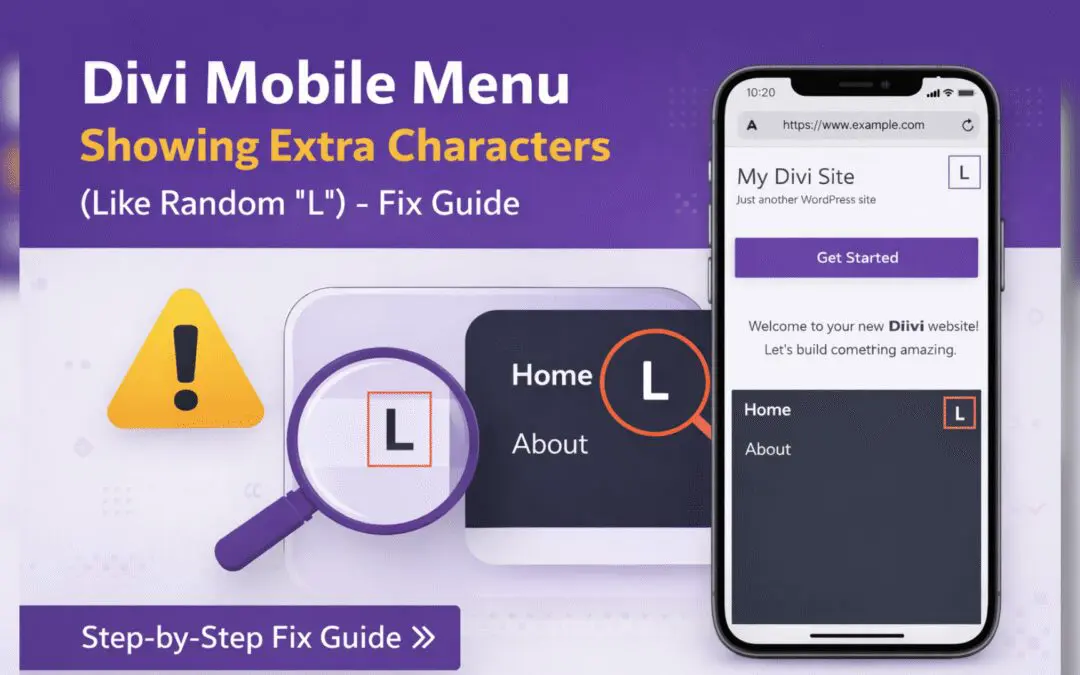
Divi Mobile Menu Showing Extra Characters or Symbols (Like Random “L”) – Fix Guide
If you are using the Divi theme on your WordPress website and notice extra characters or strange symbols (such as a random “L”, square boxes, or broken icons) appearing in the mobile menu, you are not alone. This is a common issue faced by many Divi users, especially...