When you are building a page in Elementor and suddenly your changes refuse to save, it can feel extremely frustrating. You click the Update button, the loader spins, and then either nothing happens or an error message appears. Sometimes it even looks like the page saved successfully — but after refreshing, all your recent changes disappear.
This issue is common when using Elementor with WordPress, and in most cases, it is not caused by Elementor itself. The problem usually comes from server limits, plugin conflicts, or caching systems interrupting the save request. Let’s understand it step by step and fix it properly.
Why Elementor Is Not Saving Changes
When you press the Update button, Elementor sends a background request (called an AJAX request) to your server. This request carries all your design data — layout structure, widgets, styling, spacing, images, and settings. If anything blocks or interrupts this communication, the save process fails.
Here are the most common causes explained properly:
Low PHP Memory Limit
Every hosting server allocates a specific amount of memory for your website. Elementor pages can become heavy because they contain multiple widgets, images, animations, and custom styling. If your memory limit is too low (for example, 64MB or 128MB), the server cannot process the large amount of data being sent. As a result, the request stops midway and the page does not save.
Plugin Conflict
WordPress allows multiple plugins to run at the same time. However, some plugins load scripts that interfere with Elementor’s scripts. For example, a security plugin might block background requests, or a caching plugin might prevent fresh data from being written to the database. When two plugins try to control the same function, conflicts occur.
Caching Problems
Caching systems store a static version of your website to improve speed. Sometimes Elementor successfully saves your changes, but the cached version shows the older page. This creates confusion because it appears as if the changes were never saved.
Server Firewall or ModSecurity Restrictions
Many hosting providers enable firewall rules to protect websites. Sometimes these security rules mistakenly block Elementor’s save request because it looks like a suspicious action. When this happens, you may see 403 or 500 errors.
Understanding these causes makes troubleshooting much easier.
Step 1: Increase PHP Memory Limit
Low memory is one of the biggest reasons Elementor cannot save changes properly. Elementor requires enough server resources to process layouts. If your hosting plan provides limited memory, the system simply cannot handle complex pages.
Here’s what you need to do:
Edit the wp-config.php file
Locate the wp-config.php file in your WordPress root directory. Add the following line before “That’s all, stop editing”:
define('WP_MEMORY_LIMIT', '256M');
This increases the memory WordPress can use. After saving the file, refresh Elementor and test again.Ask Hosting to Increase Server Limits
If editing wp-config.php does not work, contact your hosting support and request:
- Memory limit: 256MB or 512MB
- Max execution time: 300 seconds
- Max input vars: 3000
These values allow Elementor to process large amounts of data without interruption.
Increasing memory ensures the save request completes successfully instead of stopping halfway.
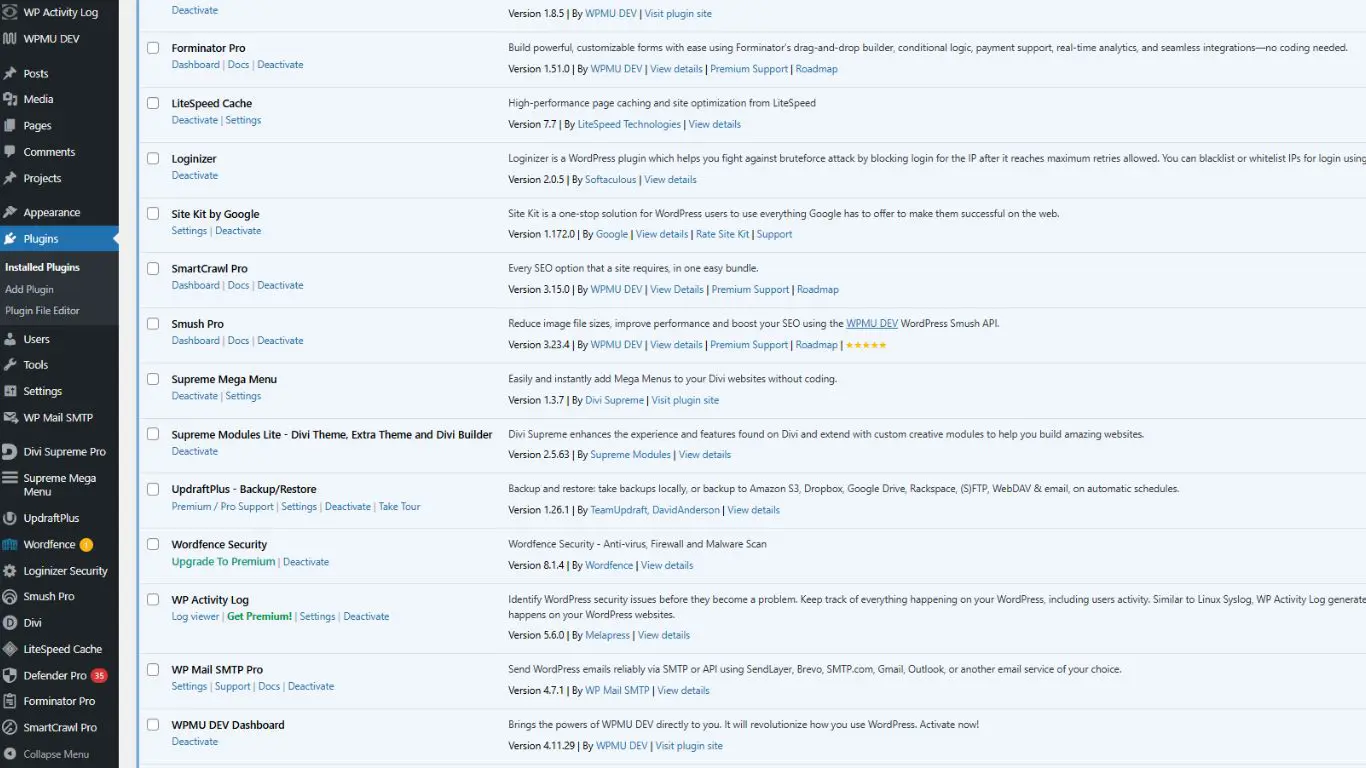
Step 2: Check for Plugin Conflicts
Plugin conflicts are extremely common in WordPress websites.
To identify if a plugin is causing the problem, follow this safe method:
Deactivate All Plugins Except Elementor
Go to your WordPress dashboard → Plugins → Deactivate all except Elementor (and Elementor Pro if installed). Now try saving the page.
If the page saves successfully, this confirms that another plugin is causing the issue.
Reactivate Plugins One by One
Activate one plugin, then test saving. Continue this process until the problem reappears. The plugin activated just before the error returns is likely the cause.
Check Common Conflict Plugins
- Security plugins may block AJAX requests.
- Cache plugins may prevent new data from updating.
- Optimization plugins may delay scripts required by Elementor.
Once identified, you can adjust that plugin’s settings or replace it with a compatible alternative.
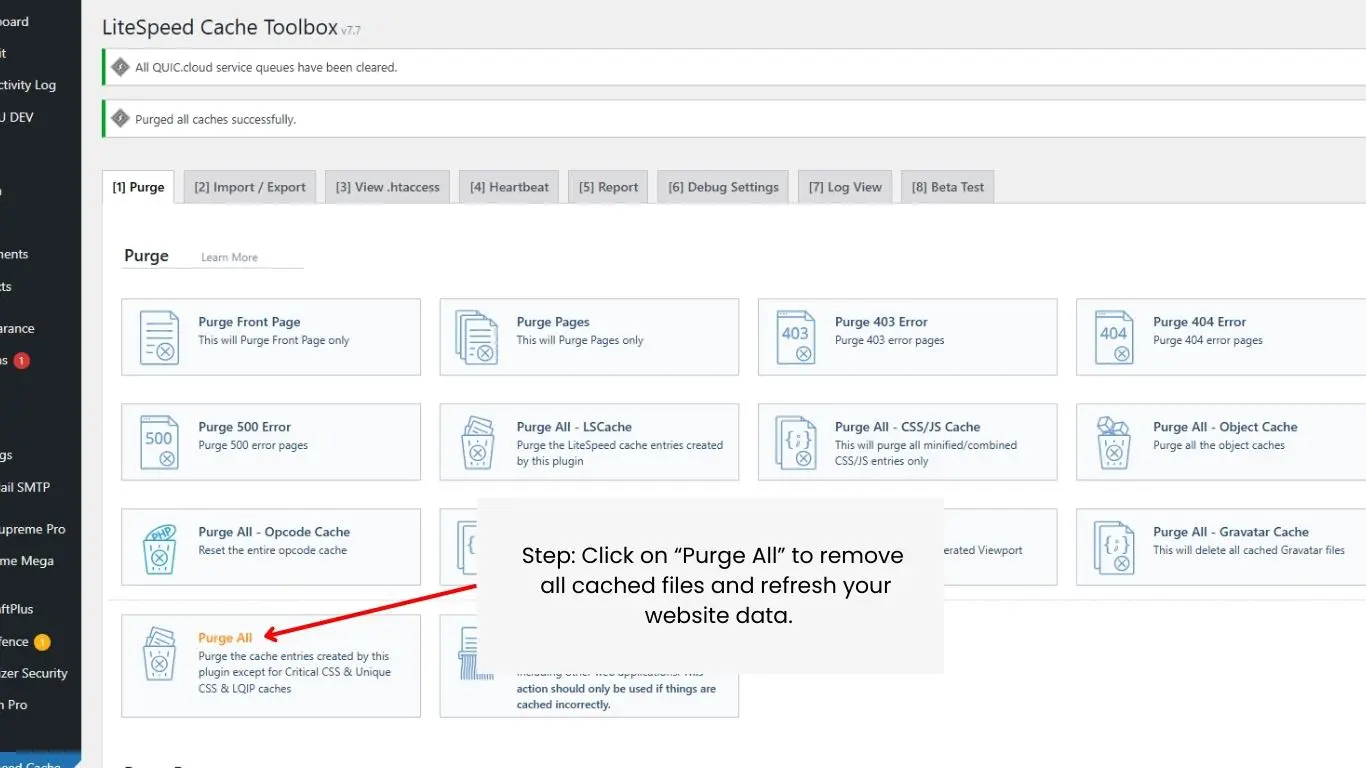
Step 3: Clear All Types of Cache
Cache-related confusion is very common. Even if Elementor saves properly, you may still see the old version due to stored cached files. Make sure you clear:
Plugin Cache
If you are using caching plugins, clear their cache completely. Some plugins also have a “Clear CSS” or “Regenerate Cache” option.
Hosting Server Cache
Many hosting providers use server-level caching. You may need to log into your hosting panel and clear it manually.
Browser Cache
Your browser stores website files locally. Press Ctrl + Shift + Delete and clear cached images and files.
CDN Cache
If you use a CDN like Cloudflare, purge all cached content from your CDN dashboard.
After clearing everything, open your website in incognito mode to confirm changes appear.
Step 4: Regenerate Elementor CSS & Data
Sometimes CSS files become corrupted after updates.
Elementor provides a built-in repair tool.
- Go to Elementor → Tools
- Click “Regenerate CSS & Data”
- Save changes and refresh the page
This process rebuilds all styling files and ensures Elementor reads fresh data from the database. If corrupted CSS was preventing the save process from displaying correctly, this step fixes it.
Step 5: Check for Server Errors (403 or 500)
If you see errors like 403 Forbidden or 500 Internal Server Error while saving, your server is blocking the request.
Here’s what might be happening:
ModSecurity Blocking AJAX
Some hosting security systems block background requests mistakenly.
File Permission Issues
Incorrect file permissions may prevent WordPress from writing data.
Firewall Restrictions
Firewalls may interpret save requests as suspicious activity.
Contact your hosting provider and request them to:
- Whitelist admin-ajax.php
- Disable ModSecurity temporarily for testing
- Increase server execution limits
Most hosting companies are familiar with this issue and can fix it quickly.
Step 6: Update WordPress, Elementor, and Theme
Outdated software creates compatibility issues. Make sure you update:
- WordPress core
- Elementor plugin
- Elementor Pro
- Your active theme
- PHP version (8.0 or above recommended)
Updates fix bugs, improve compatibility, and enhance security. Always take a backup before performing updates.
FAQs
1. Elementor says “Server Error” when saving. What should I do?
A “Server Error” message usually indicates a 500 or 403 error from your hosting server. This means the request is being blocked or failing internally.
You should:
- Contact your hosting support and ask them to whitelist admin-ajax.php.
- Request an increase in PHP memory, max execution time, and max input variables.
- Temporarily disable ModSecurity to test if it is causing the problem.
Most server-related saving issues are resolved after adjusting these settings.
1. Elementor says “Server Error” when saving. What should I do?
A “Server Error” message usually indicates a 500 or 403 error from your hosting server. This means the request is being blocked or failing internally.
You should:
- Contact your hosting support and ask them to whitelist admin-ajax.php.
- Request an increase in PHP memory, max execution time, and max input variables.
- Temporarily disable ModSecurity to test if it is causing the problem.
Most server-related saving issues are resolved after adjusting these settings.
2. My changes disappear after refreshing the page. Why?
If your changes disappear after refreshing, the most common cause is caching.
This happens because:
- Your caching plugin is showing an older version of the page.
- Your hosting server cache has not been cleared.
- Your browser is loading stored files instead of the updated version.
- A CDN like Cloudflare is serving cached content.
To fix this, clear all levels of cache and check your page in incognito mode.
3. Does using too many plugins affect Elementor saving?
Yes, using too many plugins can affect performance and create conflicts. When multiple plugins load scripts and styles at the same time:
- They may conflict with Elementor’s JavaScript.
- They may block REST API requests.
- They may increase server load and slow down processing.
It’s always recommended to use only necessary plugins and deactivate unused ones.
4. Can outdated WordPress or Elementor versions cause saving problems?
Yes, outdated versions often cause compatibility issues.
For example:
- A new Elementor version may require a newer PHP version.
- An old theme may not support updated Elementor scripts.
- WordPress core updates may introduce changes that older plugins cannot handle.
Keeping WordPress, Elementor, and your theme updated ensures smooth performance and prevents saving errors.
5. How much PHP memory does Elementor need?
For small websites, 256MB is usually enough. However, for larger or more complex pages with animations, forms, and multiple widgets, 512MB is recommended.
Low memory limits are one of the biggest reasons Elementor fails to save changes properly.
Conclusion:
Elementor not saving changes can feel like a major technical problem, but in reality, it is usually caused by manageable issues such as low memory limits, plugin conflicts, caching problems, or server restrictions. The key to solving it successfully is following a structured troubleshooting process instead of making random changes.
Start with simple checks like internet connection and cache clearing. Then move to increasing PHP memory limits, checking for plugin conflicts, and reviewing server restrictions. In most cases, the issue is resolved within the first few steps.
Remember that Elementor relies heavily on proper server configuration. Using reliable hosting, maintaining updated software, and keeping your plugin list clean will prevent most saving issues in the future.
With patience and systematic testing, you can fix Elementor saving problems without hiring a developer — and keep your website running smoothly and professionally.
Search blogs
Other Blogs
How to Fix Cumulative Layout Shift (CLS) in WordPress
How to Fix “There Has Been a Critical Error on This Website” in WordPress
Divi 5 Is Finally Here — A Deep Dive Into the New Interface, Speed, Features & What’s Changed
How to Fix reCAPTCHA Not Working in WordPress