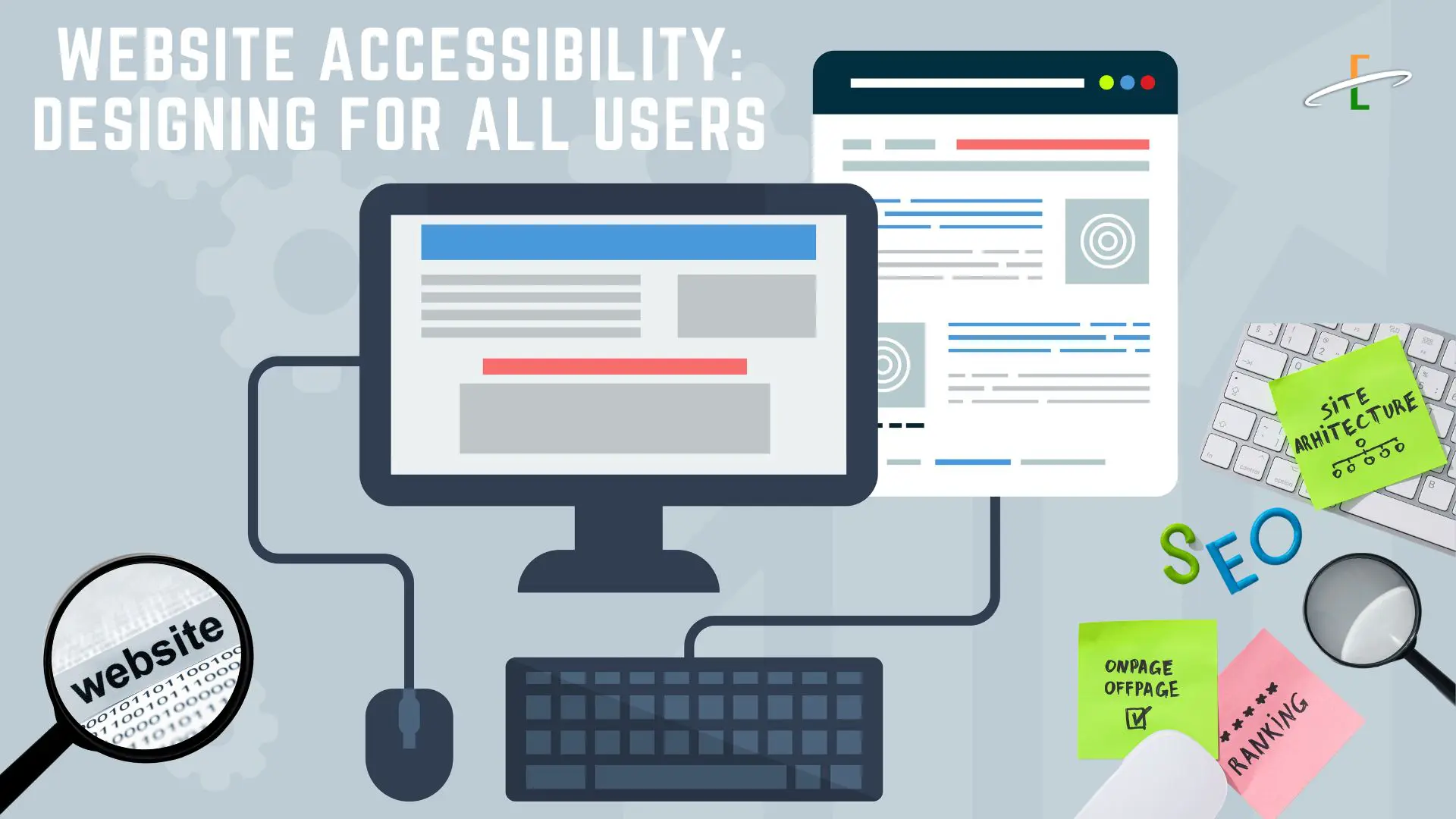
Website Accessibility: Designing for All Users
Category: Web Development
In the digital age, having an online presence is essential — but it's even more important that your website is usable by everyone. Website accessibility ensures that people with disabilities can perceive, navigate, and interact with your site effectively. It's not just about compliance; it’s about inclusivity, better user experience, and reaching a wider audience.
What is Website Accessibility?
Website accessibility means designing and developing websites that people with a variety of abilities and disabilities can use. This includes individuals who are:
- Visually impaired (blindness, low vision, color blindness)
- Hearing impaired
- Mobility impaired
- Cognitively or neurologically challenged
The Web Content Accessibility Guidelines (WCAG) are the global standard for accessibility, currently at version 2.2 as of 2025. These guidelines are built around four principles: Perceivable, Operable, Understandable, and Robust (POUR).
Why Accessibility Matters
1. Legal Compliance
- Many countries (e.g., the U.S., UK, Canada, and EU nations) have laws mandating website accessibility.
- In the U.S., Title III of the ADA (Americans with Disabilities Act) can apply to websites, making accessibility a legal requirement.
2. Improved SEO
- Search engines favor accessible websites because many accessibility practices also improve structure and readability.
3. Wider Audience Reach
- Around 15% of the global population has some form of disability. An accessible site serves more users.
4. Better User Experience for All
- Accessibility features (like clear navigation, contrast, and captions) benefit everyone — not just those with disabilities.
Key Accessibility Features to Implement
1. Text Alternatives for Media
- Use alt text for all images.
- Provide captions and transcripts for audio and video content.
2. Keyboard Navigation
- Ensure the site can be navigated using only the keyboard.
- Highlight focusable elements with a visible outline.
3. Clear Structure & Headings
Use semantic HTML:
<h1>for titles,<h2>,<h3>for subheadings.Use ARIA (Accessible Rich Internet Applications) landmarks for assistive tech.
4. Color Contrast
- Maintain high contrast between background and text (at least 4.5:1).
- Avoid using color alone to convey meaning (e.g., red for errors).
5. Accessible Forms
- Use properly associated
<label>tags for inputs. - Include clear instructions and error messages.
6. Responsive & Flexible Layouts
- Ensure readability on all devices.
- Avoid fixed sizes that can’t be zoomed.
7. Descriptive Links & Buttons
- Avoid vague text like "Click here."
- Use link text that describes the destination or action (e.g., “Download PDF”).
Tools to Check Accessibility
Here are some free tools to evaluate your website's accessibility:
| Tool | Purpose |
|---|---|
| WAVE (wave.webaim.org) | Browser-based accessibility checker |
| axe DevTools | Chrome/Firefox extension for testing |
| Lighthouse | Built into Chrome DevTools (Accessibility tab) |
| Screen Readers (NVDA, VoiceOver) | Test real user experiences |
| Color Contrast Analyzer | Verify readable color combinations |
Accessibility in WordPress
If you’re using WordPress, accessibility is easier with the right tools and themes:
Use an Accessibility-Ready Theme
Search the WordPress Theme Repository and filter by “accessibility-ready.”
Recommended Plugins
- WP Accessibility – Adds skip links, alt checker, and other essentials.
- Accessibility Widget – Enables font resizing and contrast toggles.
- One Click Accessibility – Adds basic features like keyboard nav, contrast, etc.
Common Accessibility Mistakes to Avoid
- Relying solely on mouse interactions
- Using placeholder text instead of labels
- Lacking focus states on links and buttons
- Using images of text instead of real text
- Failing to test with real assistive technologies
Accessibility is a Journey, Not a Checklist
Making your website accessible isn't a one-time task — it's a continuous process. By designing for all users, you not only meet legal standards but also foster inclusivity and provide a better experience for everyone who visits your site.
Conclusion:
Accessibility is not just for developers or people with disabilities. It’s for everyone. Whether you're a designer, content creator, or business owner, making your site accessible improves quality, reputation, and reach.
Search blogs
Other Blogs
Elementor Not Saving Changes? Step-by-Step Solution
How to Fix “There Has Been a Critical Error on This Website” in WordPress
Divi 5 Is Finally Here — A Deep Dive Into the New Interface, Speed, Features & What’s Changed

How to Fix reCAPTCHA Not Working in WordPress