How to Resolve Issues with Divi on Mobile Devices
Category: Web Design | Web Development
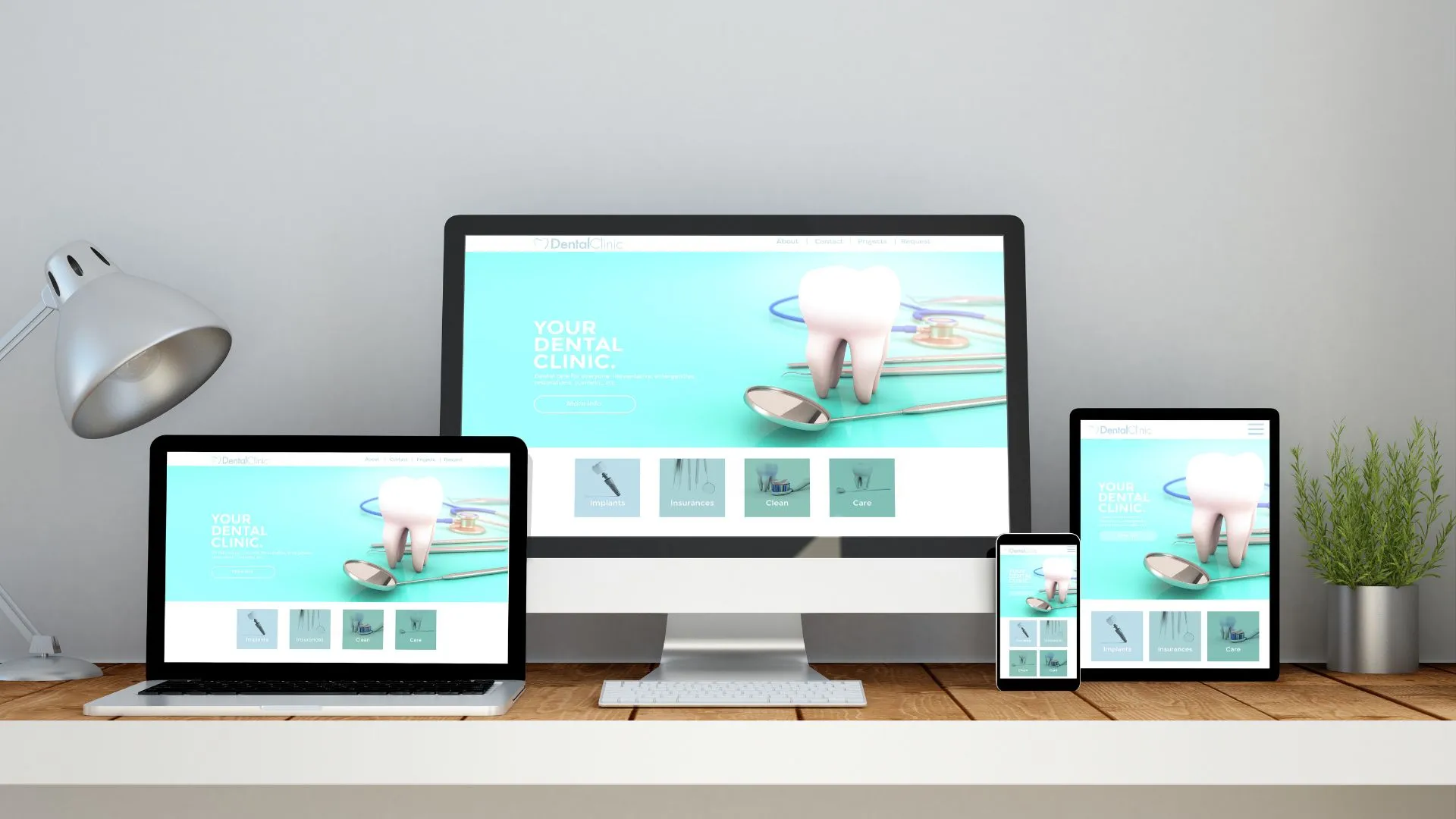
Creating a responsive website that works flawlessly on mobile devices is essential in today’s mobile-first world. While Divi is a powerful and versatile WordPress theme, you may encounter occasional issues when optimizing for mobile. Fortunately, most problems can be resolved with a few adjustments. This blog outlines common mobile-related issues in Divi and provides actionable solutions to fix them.
Common Mobile Issues in Divi
- Unresponsive Layouts
Sometimes, your Divi layout looks perfect on desktop but appears broken or distorted on mobile devices. - Text or Button Overlap
Oversized text or buttons may overlap, making your design look cluttered. - Slow Loading Speeds
Large images and excessive animations can cause mobile pages to load slowly. - Navigation Menu Problems
Mobile menus might not work properly or could appear off-screen. - Alignment and Spacing Issues
Uneven spacing or misaligned elements can ruin the visual appeal of your mobile design.
Solutions to Divi Mobile Issues
- Check and Adjust Divi’s Mobile Settings
Divi provides built-in responsive design controls. Use these tools to customize your layout for mobile:- Go to the Divi Builder and click on the gear icon of any module.
- Use the responsive tabs (desktop, tablet, and phone icons) to adjust settings for each device type.
- Modify font sizes, margins, paddings, and element alignment specifically for mobile devices.
- Use Custom Breakpoints
Divi’s default breakpoints may not always meet your needs. Add custom breakpoints in your CSS to optimize your design for specific screen sizes:
@media only screen and (max-width: 480px) {
.custom-class {
font-size: 14px;
padding: 10px;
}
}
Add this CSS code in Divi > Theme Options > Custom CSS or in the Divi Builder Page Settings. - Optimize Images for Mobile
Large images can slow down your website on mobile devices. Use these techniques to optimize images:- Use Divi’s built-in image settings to upload smaller versions of images for mobile.
- Enable lazy loading to delay loading images until they are visible on the screen.
- Fix Navigation Menu Issues
If your mobile menu is not functioning as expected, check these settings:- Go to Divi > Theme Customizer > Header & Navigation > Menu Settings and adjust mobile menu styles.
- Use custom CSS to fix menu alignment issues:
.et_mobile_menu {
text-align: center;
} - Test your mobile menu to ensure that dropdowns and links are working.
- Use Divi’s Visibility Settings
If certain elements look problematic on mobile, you can hide them:- In the Divi Builder, click on the gear icon for the section or module.
- Go to the Advanced > Visibility tab and disable the element for mobile devices.
- Create a mobile-specific version of the element and customize it separately.
- Test and Debug
Through testing is crucial to ensure a seamless mobile experience:- Use browser developer tools (F12 or right-click > Inspect) to simulate mobile devices.
- Test your website on actual devices for real-world performance.
- Use tools like Google’s Mobile-Friendly Test to identify issues.
Best Practices for Mobile Optimization in Divi
- Stick to Simplicity: Avoid overloading your pages with unnecessary elements.
- Prioritize Performance: Use caching plugins like WP Rocket to improve loading speeds.
- Monitor Updates: Keep Divi, WordPress, and all plugins updated to avoid compatibility issues.
- Use Analytics: Monitor user behavior on mobile devices to identify areas for improvement.
Conclusion:
Alt text is a small detail with a big impact. It bridges gaps for users with disabilities and amplifies your content’s reach through improved SEO. By following best practices and avoiding common pitfalls, you can make your website a shining example of accessibility and optimization. Start today—because every image deserves a voice.
Contact us to get more information about it.