The Ultimate WordPress Maintenance Checklist: Keep Your Site Running Smoothly
Category: WordPress
Keeping your WordPress website in top shape requires regular maintenance. Just like a well-oiled machine, your site needs care and attention to ensure it runs smoothly, remains secure, and delivers the best possible experience to your visitors. In this guide, we'll walk through a comprehensive WordPress maintenance checklist to help you stay on top of essential tasks and keep your site in peak condition.
1. Backup Your Website Regularly:
- Regular backups are your safety net in case anything goes wrong with your site. Use a reliable backup plugin like UpdraftPlus or Jetpack to schedule automatic backups of your database and files.
- Store backups securely in multiple locations, such as cloud storage services like Dropbox, Google Drive, or Amazon S3, as well as locally on your computer or server.
2. Update WordPress Core, Themes, and Plugins:
- Keep your WordPress core, themes, and plugins up to date to ensure compatibility, security patches, and performance improvements.
- Enable automatic updates for minor WordPress releases and plugins, but manually review and test major updates before applying them to your site.
3. Perform Security Scans and Audits:
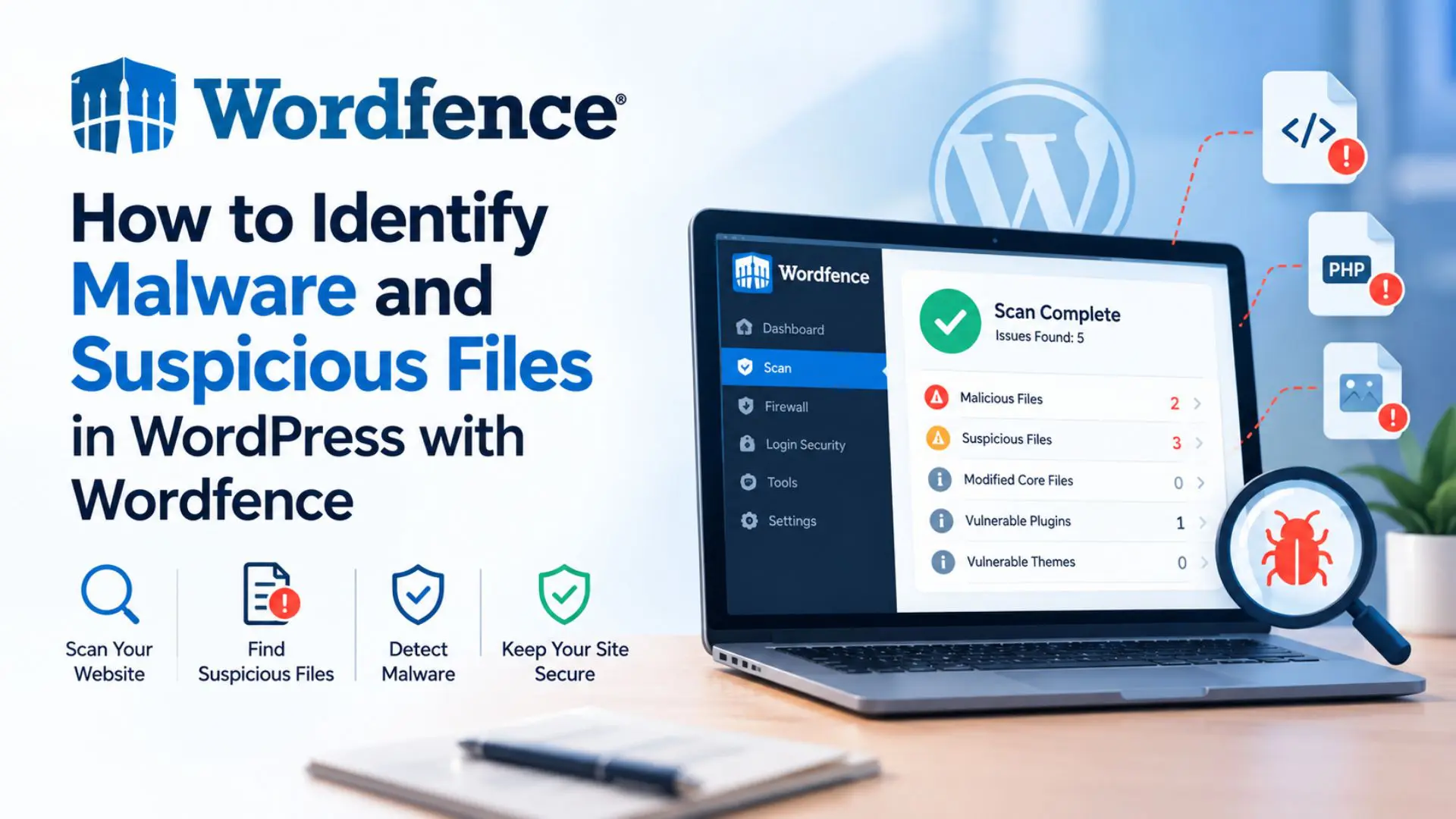
- Regularly scan your website for malware, vulnerabilities, and suspicious activity using security plugins like Wordfence.
- Conduct security audits to review user permissions, file permissions, and firewall settings to prevent unauthorized access and attacks.
4. Optimize Website Performance:
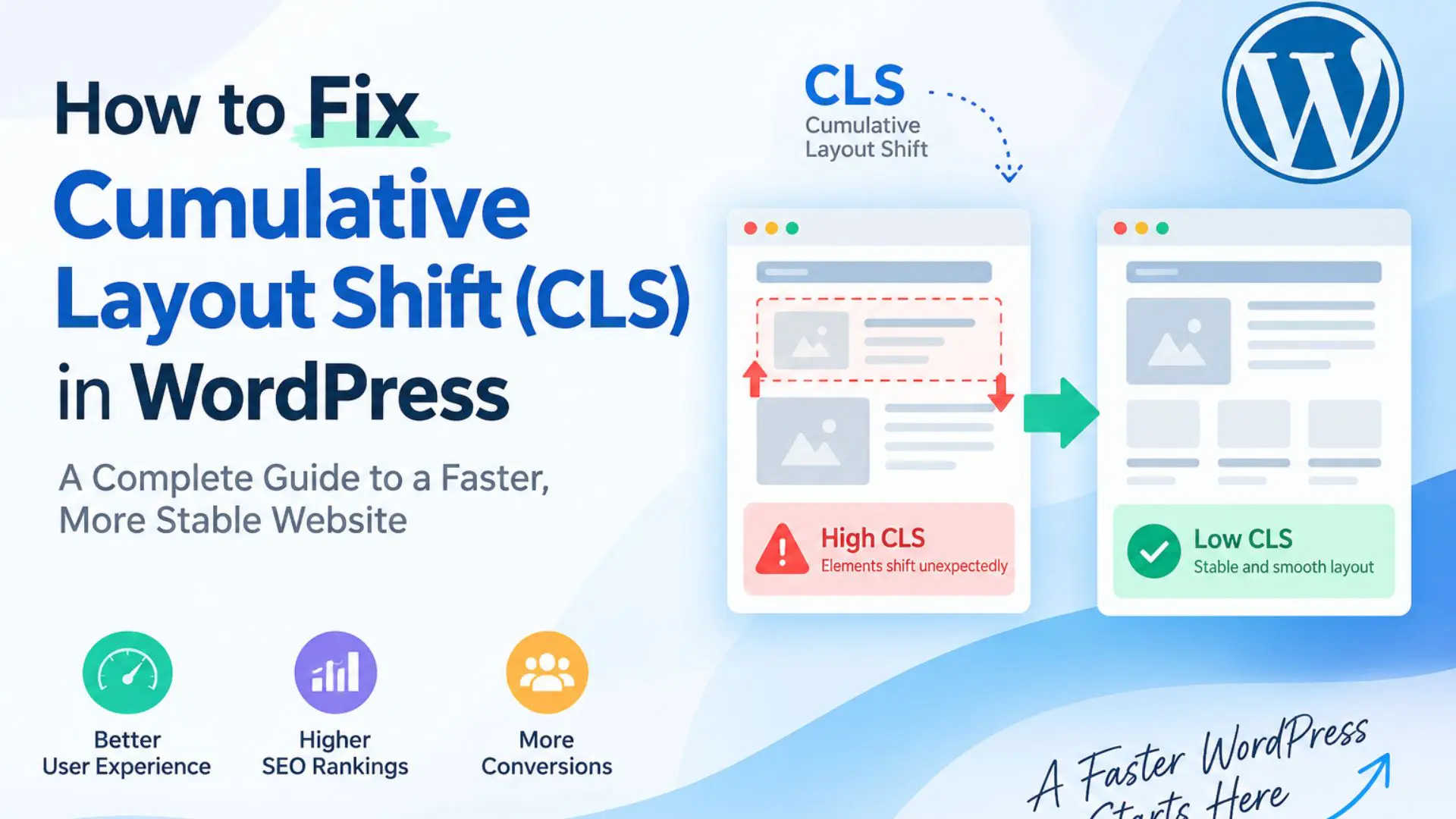
- Improve your site's speed and performance by optimizing images, minifying CSS and JavaScript files, and implementing caching mechanisms.
- Use performance monitoring tools like Google PageSpeed Insights or GTmetrix to identify and address performance bottlenecks.
5. Check and Fix Broken Links:
- Broken links can harm your site's SEO and user experience. Use a broken link checker plugin like Broken Link Checker to regularly scan your website and fix any broken links.
- Update internal links when restructuring your site or updating content to ensure smooth navigation for visitors and search engine crawlers.
6. Review and Update Content:
- Regularly review your website's content to ensure it remains accurate, relevant, and engaging for your audience.
- Update outdated information, refresh stale content, and add new content to keep your site fresh and informative.
7. Monitor Website Uptime and Downtime:
- Use uptime monitoring services like UptimeRobot or Pingdom to track your website's uptime and receive alerts in case of downtime.
- Investigate and address any issues causing downtime promptly to minimize impact on your site's availability and reputation.
8. Optimize Database and Cleanup Unused Data:
- Regularly optimize your WordPress database by removing unused data, such as post revisions, spam comments, and transients.
- Use database optimization plugins like WP-Optimize or Advanced Database Cleaner to automate cleanup tasks and keep your database lean and efficient.
9. Review Website Analytics:
- Monitor website analytics using tools like Google Analytics to track traffic, user behavior, and conversions.
- Analyze key metrics and trends to identify areas for improvement and optimize your site's performance and user experience.
Conclusion:
By following this comprehensive WordPress maintenance checklist, you can ensure that your website remains secure, performs optimally, and delivers a great experience to your visitors. Regular maintenance is essential for the long-term success of your WordPress site, so make it a priority and reap the benefits of a well-maintained website. Contact us to get more information about it.